
Adobe PhotoShop
(2025)
System Requirements
-
-
-
- Windows 11 Pro (64-Bit Version) or Windows 10 Pro (64-Bit Version) version 22H2
- (Will Not Work on Windows 11 Home)
- Intel 6th Generation CPU or Higher
- Intel 11th Generation CPU (Video Editing)
- 8GB of RAM
- 16GB of RAM (1080p Video Editing)
- 32GB of RAM (4K Video Editing + 4050 RTX 4GB or later)
- 5.3GB of Hard Drive Space
- 1080P Editing requires 2060 RTX 4GB or later
- Windows 11 Pro (64-Bit Version) or Windows 10 Pro (64-Bit Version) version 22H2
-
-
Anti-Virus
Step 1 – Turn off <Anti Virus>. If you have anything besides “Windows Defender” you will need to figure that on your own.
– Reason turning off Anti-Virus to prevent a false positive during install. Anti-Virus will be turned back on after done.
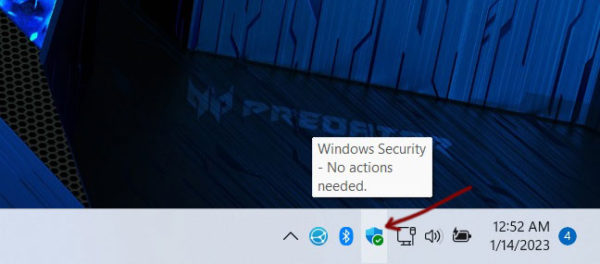
Step 2 – Bottom right there is a icon. This is “Windows Defender”
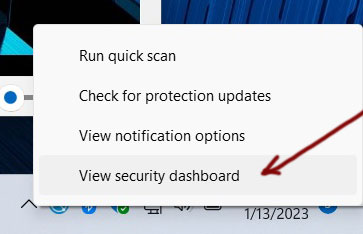
Step 3 – Right Click over that icon and choose “View security dashboard”
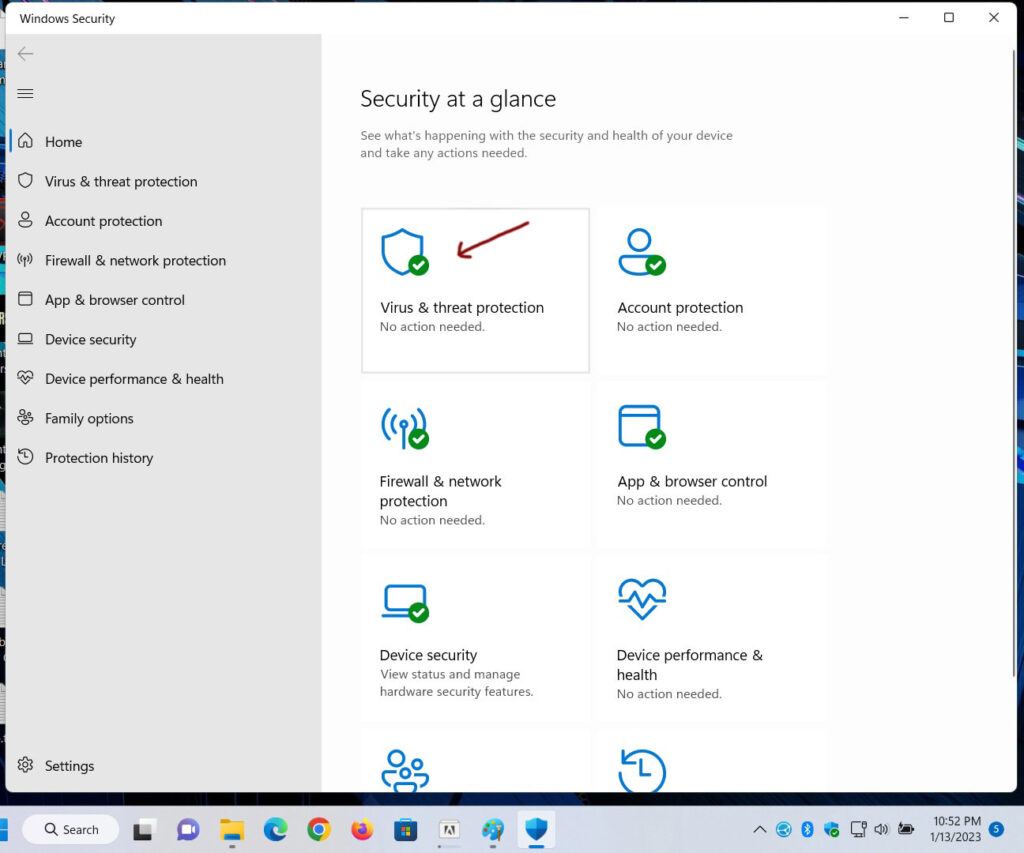
Step 4 – Click on “Virus & threat protection”
Step 5 – Click on “Manage settings” under <Virus & threat protection settings>
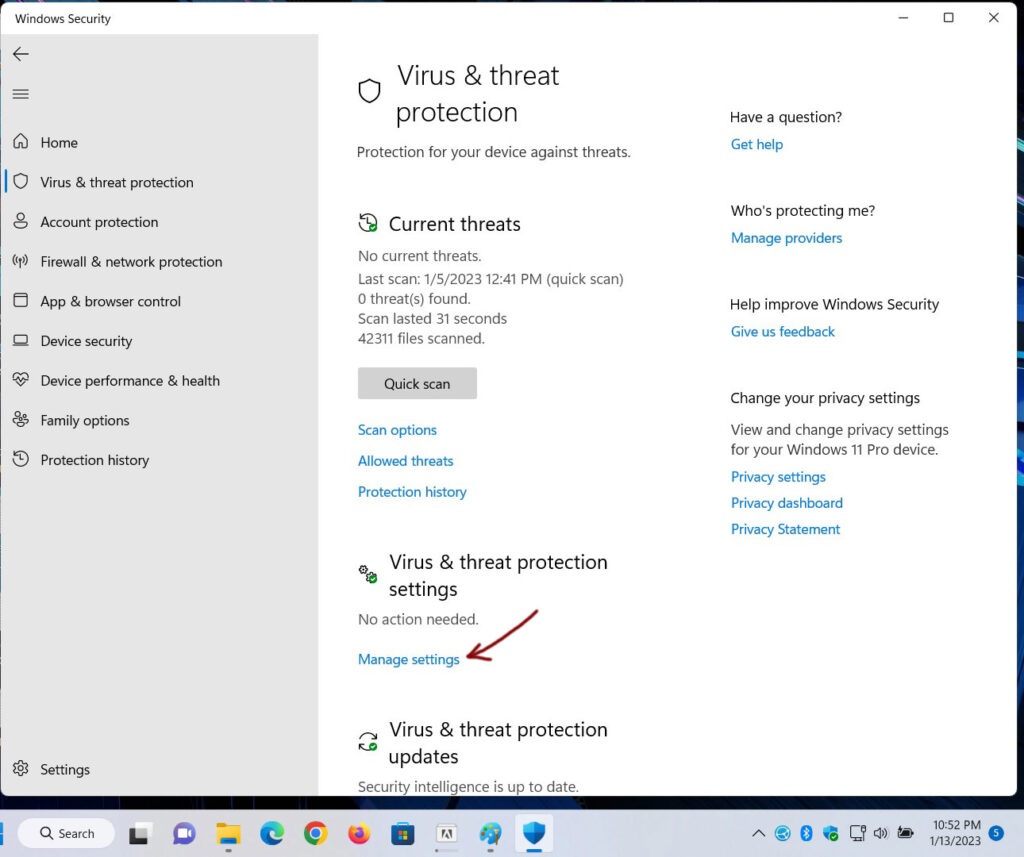
Step 6 – <Virus & threat protection settings>
Step 5 – Turn off “Real-time protection“, Turn off “Cloud-delivered protection“,
Step 5+ – Turn off “Automatic sample submission“, Turn off “Tamper protection”
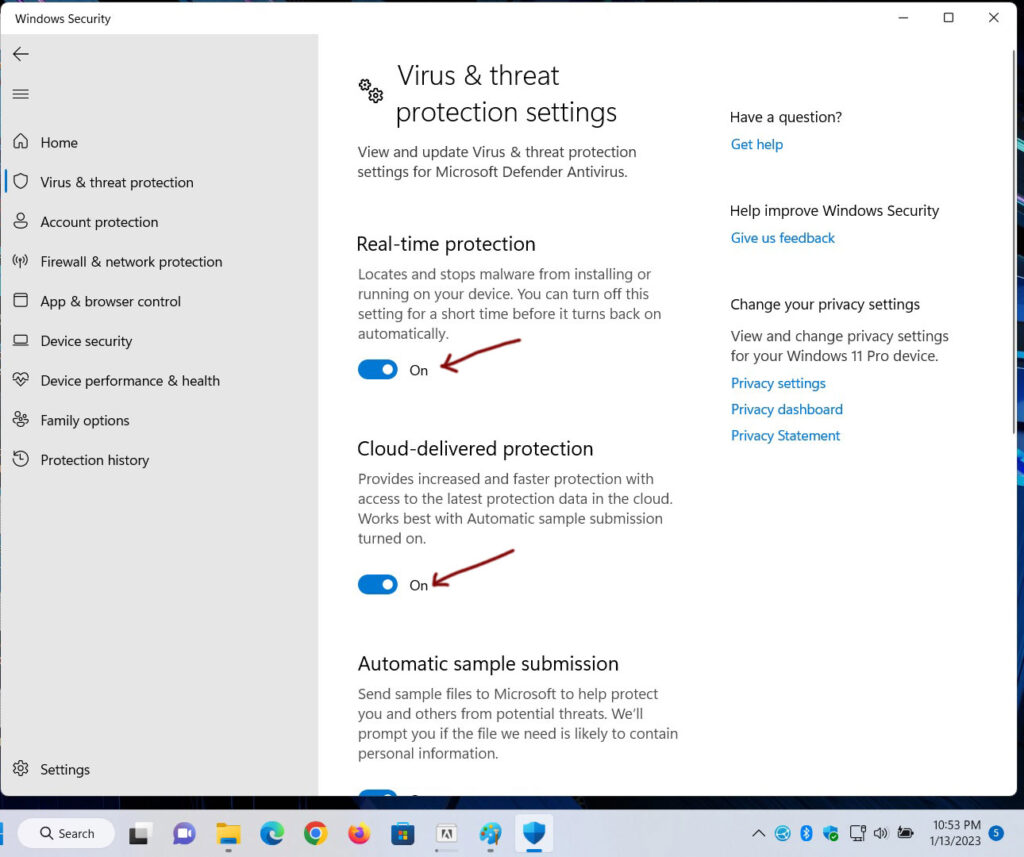
Now should be this
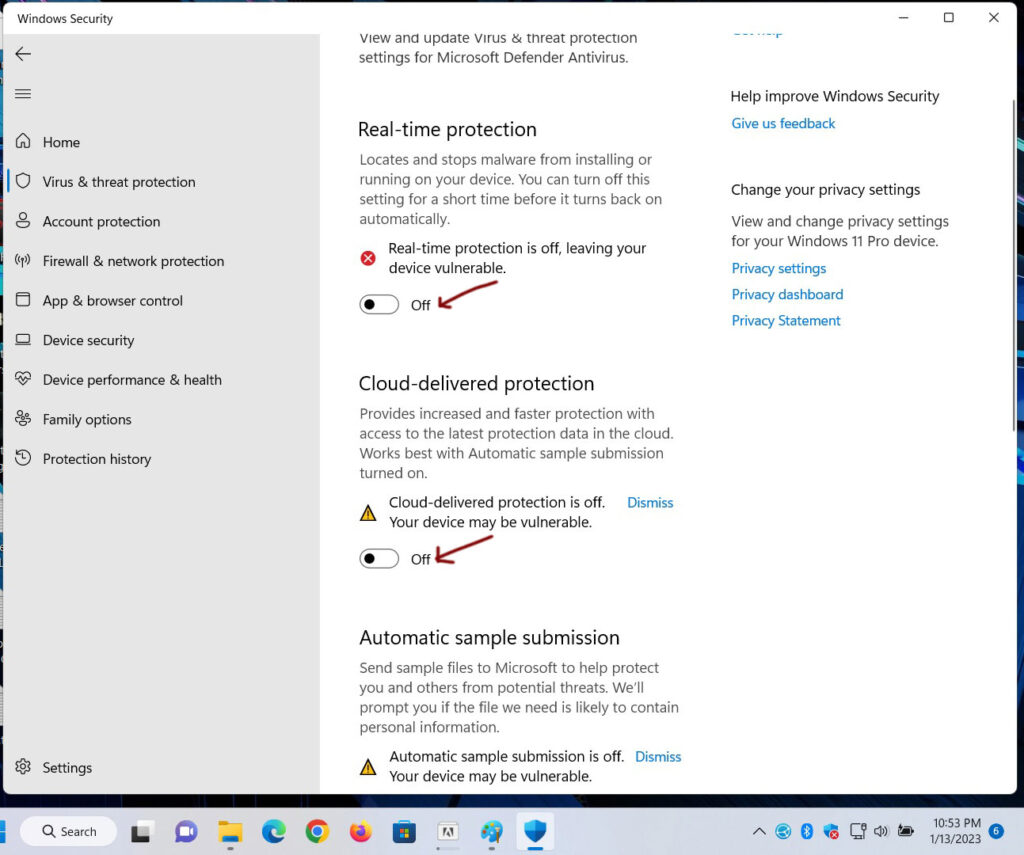
Done
DOWNLOAD
Download
Step 1 – Download the RAR file(s). Download one at a time to prevent time outs.
Step 2 – Download all files into the same folder.
Step 3 – Click on “Adobe Cleaner” in the section. It will start the download automatically.
Step 4 – Click on “WinRAR” in the section. It will start the download automatically.
Step 5 – Click on “Adobe File(s)” in the section. It will start the download automatically.
Step 6 – After downloading is complete move on to the next file(s) “Adobe File(s) 1 of x” and so on

Adobe Folder
Step 1 – Download(s) completed. Move all files into a New Folder “Adobe PhotoShop 2025“. Open the folder.
Step 2 – Folder should have all the files as seen below

WinRAR
Step 01 – WinRAR is a extraction tool.
Step 02 – Highlight & Right Click on “WinRAR 6.22.zip”

Step 03 – Menu appears. Choose “Extract All…” New Window Appears. Click “Extract”
Step 04 – New folder appears “WinRAR 6.22”

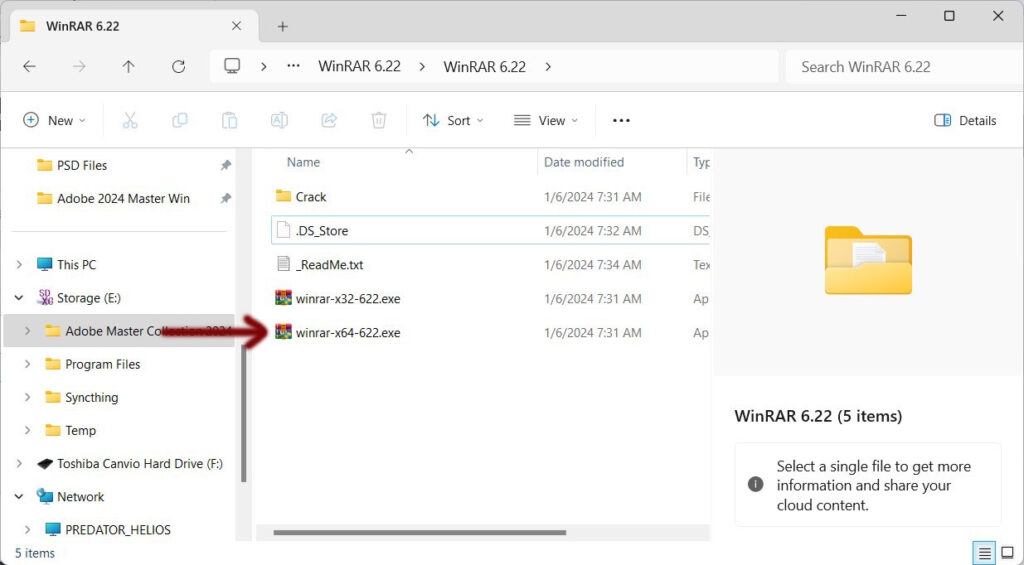
Step 05 – WinRAR 6.22 folder. Highlight and Click on “winrar-x64-622.exe” to begin install.
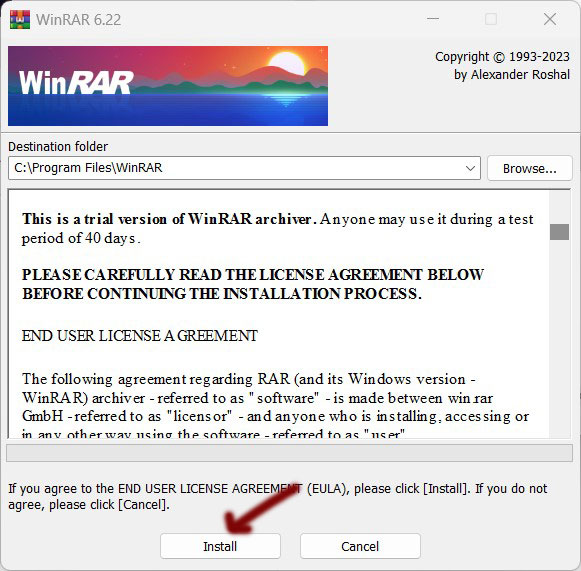
Step 06 – New window appears “WinRAR 6.22“. Click “Install”
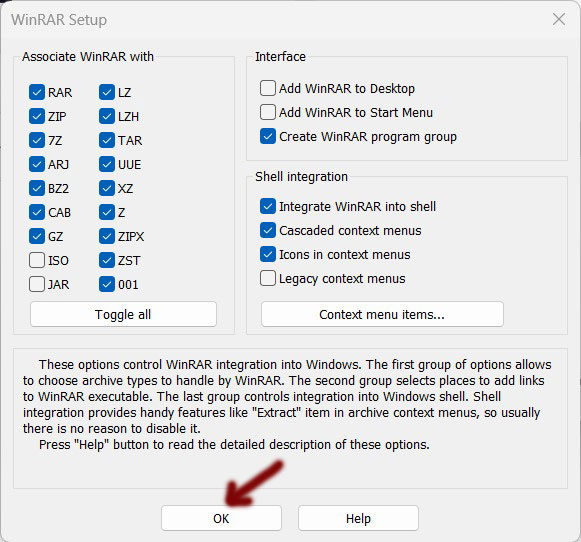
Step 07 – Next window appears “WinRAR Setup“. Click “OK”
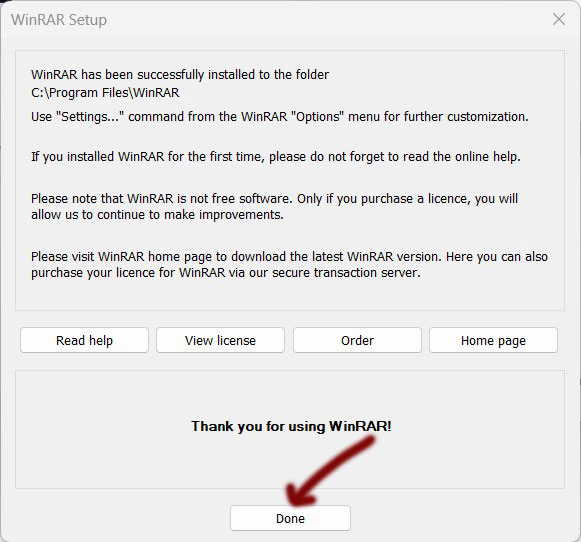
Step 08 – Next window appears “Thank you for using WinRAR!“. Click “Done”
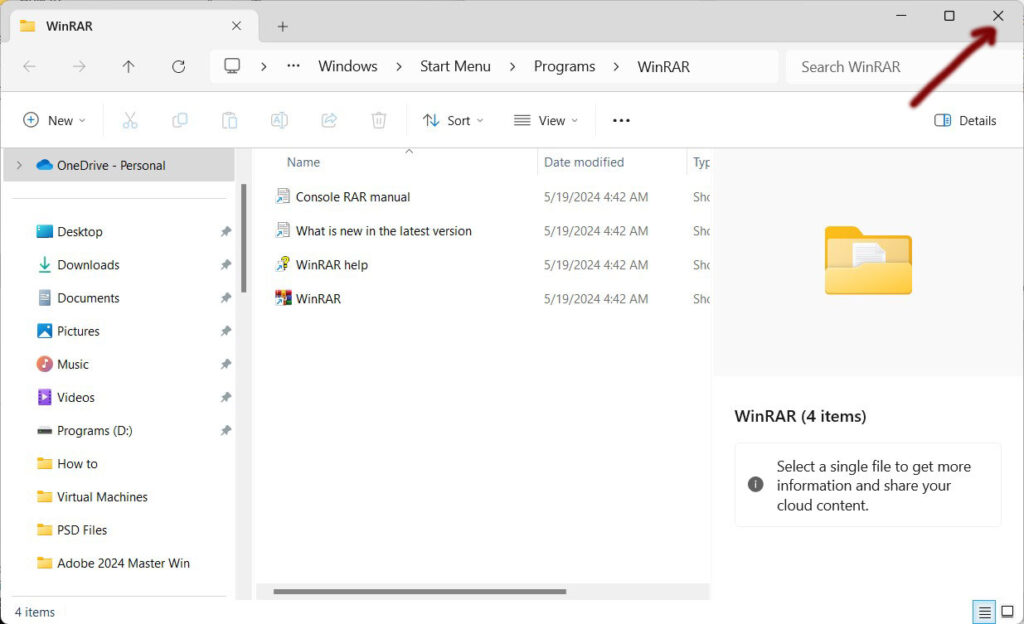
Step 09 – New window appears “WinRAR“. Close “Window”
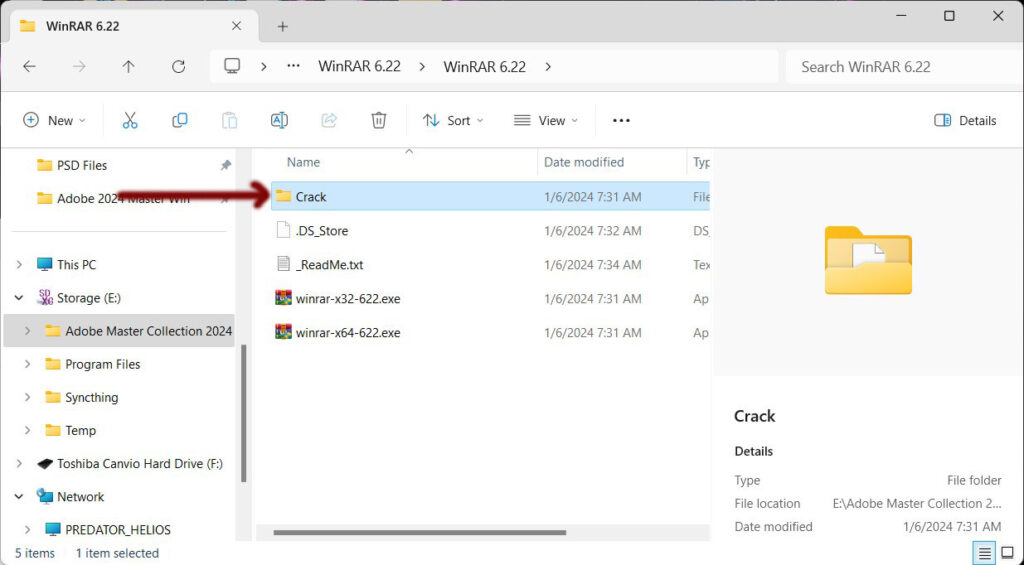
Step 10 – Back to window “WinRAR 6.22“. Open “Crack” folder
Step 11 – Copy the file “rarreg.key”
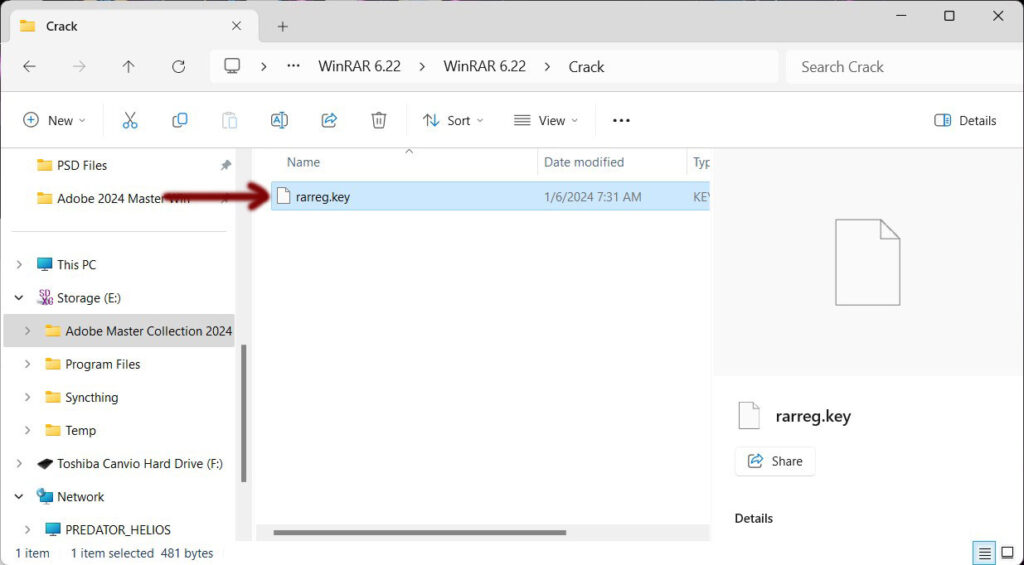
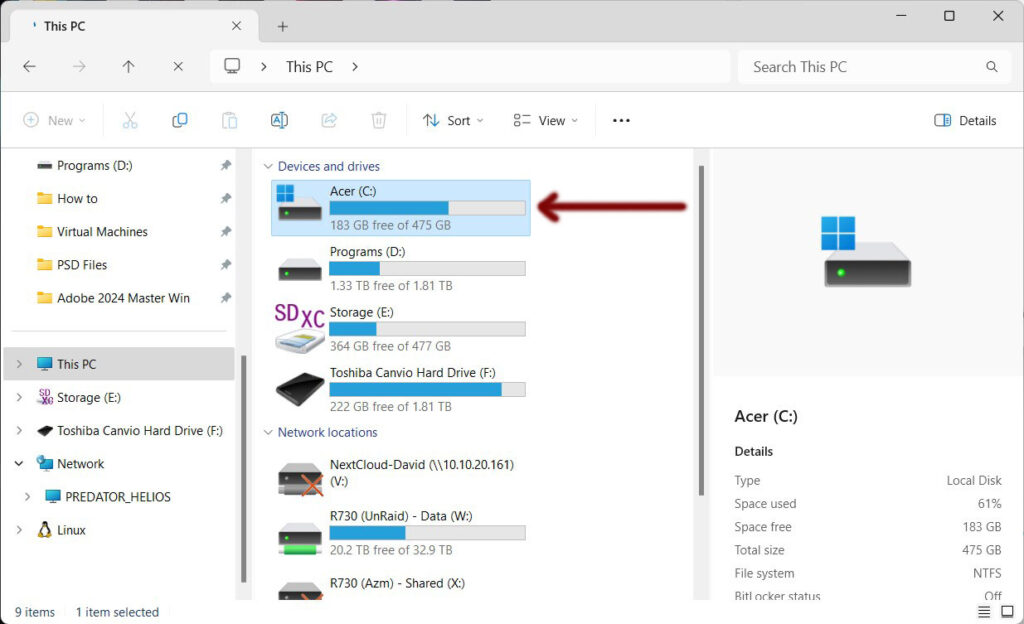
Step 12 – Navigate to your C drive and open
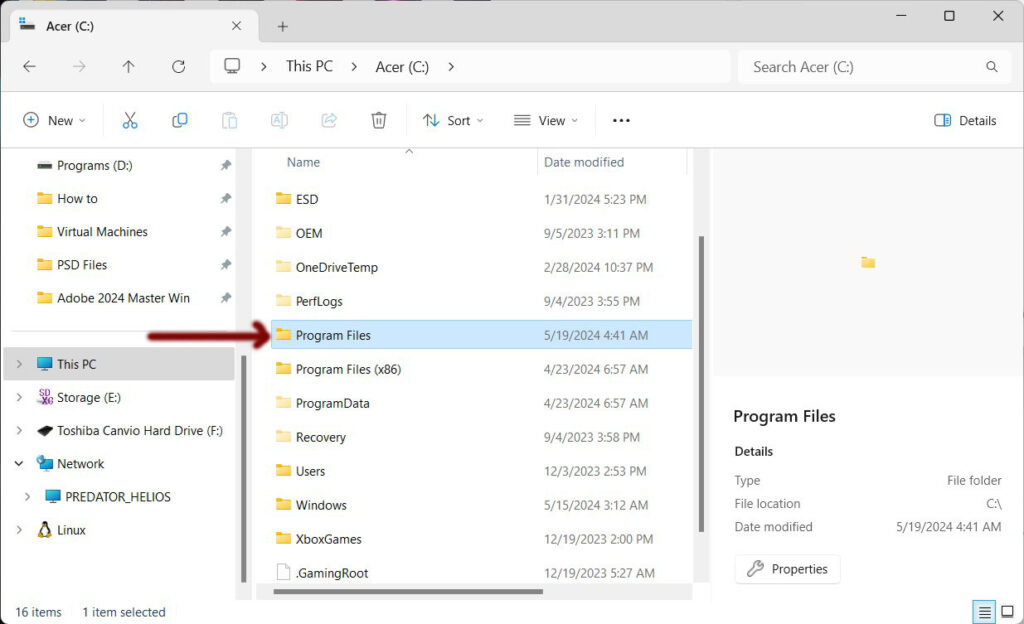
Step 13 – Navigate to “Program Files” and open
Step 14 – Navigate to “WinRAR” and open
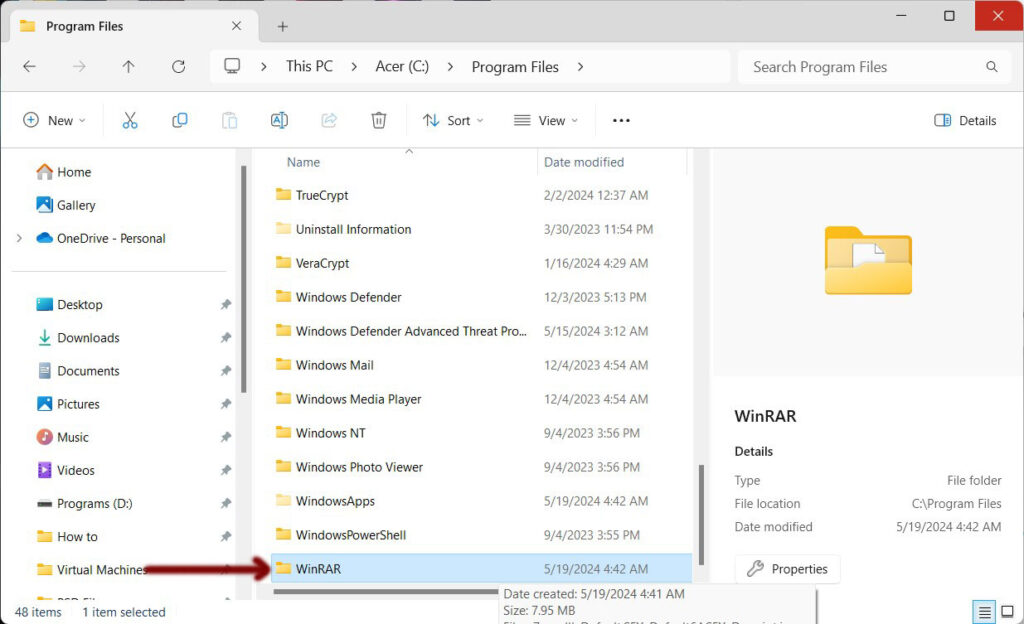
Step 15 – Paste the file “rarreg.key” to this directory
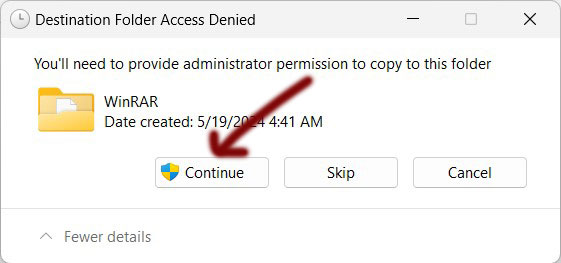
Step 16 – Popup “administrator permission” required. Click “Continue”
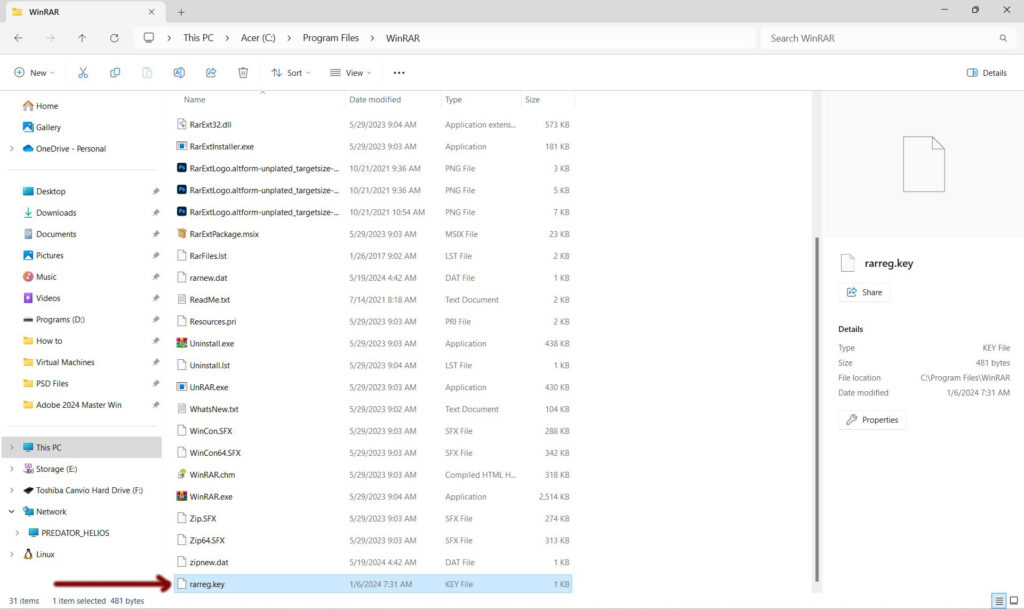
Step 17 – “rarreg.key” is now in the folder (As Shown Below). Done. Close window.
Extraction
Step 01 – Open the “Adobe” folder where all the files are downloaded to
Step 02 – Highlight and Right Click on file “Photoshop 2025-06-18-v9.part1.rar”
Step 03 – Menu appears. Scroll down to “WinRAR” then select “Extract to Photoshop 2025-06-18-v9”

Step 04 – Popup “Password“. Password = Ad0b3$2025
Step 05 – Click OK

Step 06 – Extraction Begins…Takes roughly 20 mins to extract everything

Setup
Step 01 – Extraction is done. New folder appears “Photoshop 2025-06-18-v9”
Step 02 – Open new folder and again till you see 5 files.

Adobe Clean
Adobe Cleaner Tool (2025 Version)
Follow these steps only if you have an older version of Adobe products
Skip this step if no Adobe products were ever installed
Step 01 – Open folder “Adobe PhotoShop 2025”
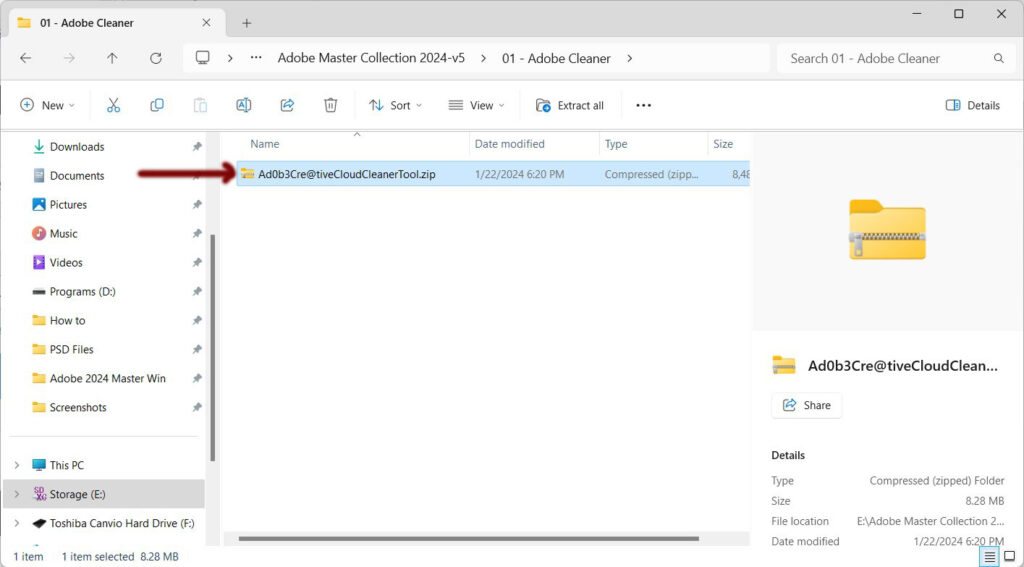
Step 01 – Right Click “Ad0b3Cre@tiveCloudCleanerTool.zip” and Choose “Extract All…”
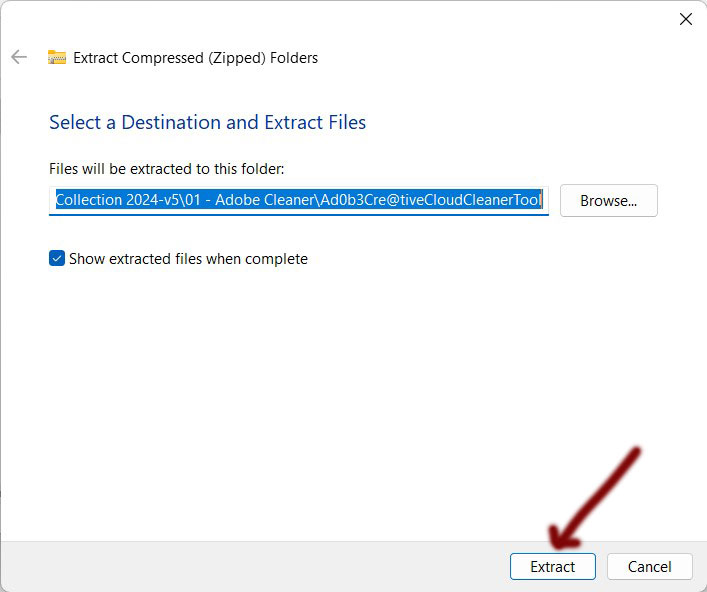
Step 03 – New window appears. Click “Extract”
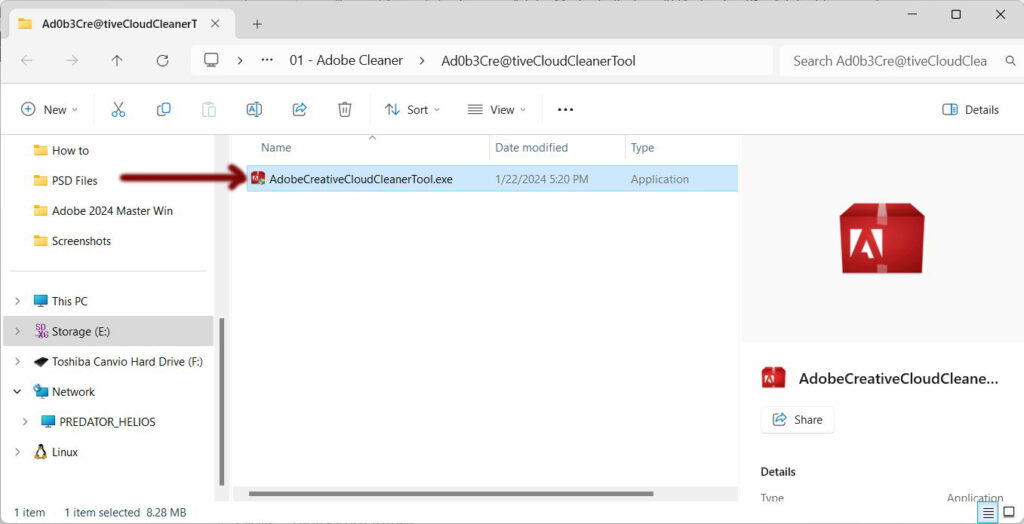
Step 04 – Open folder “Ad0b3Cre@tiveCloudCleanerTool”
Step 05 – Right click on “AdobeCreativeCloudCleanerTool.exe“. New menu appears. Choose “Run as administrator”
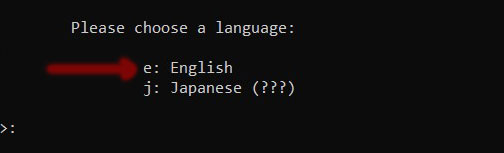
Step 06 – New window appears
Step 07 – Click on “e” and hit “enter” to begin in English
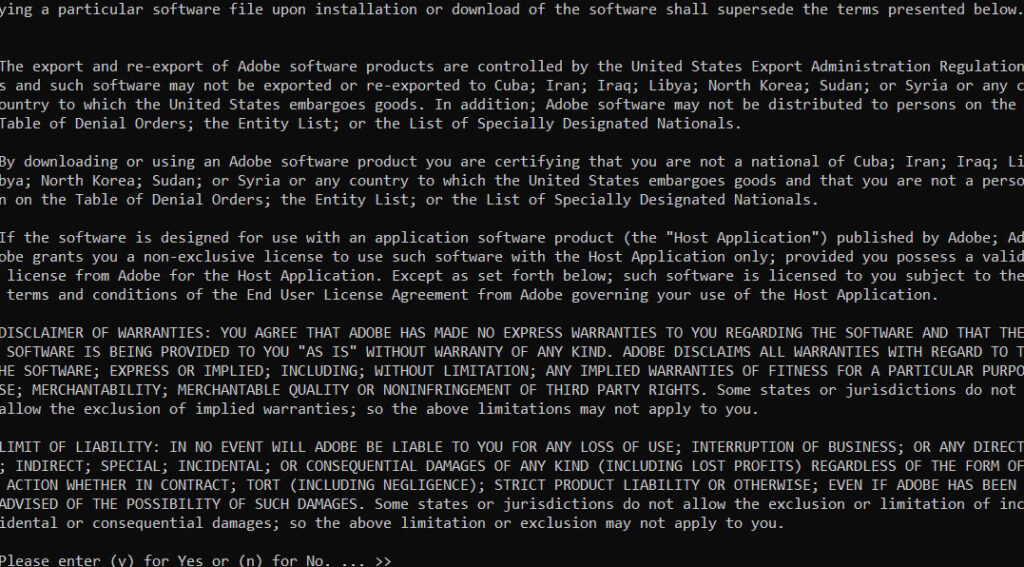
Step 08 – Next. Press “y” then hit “enter”
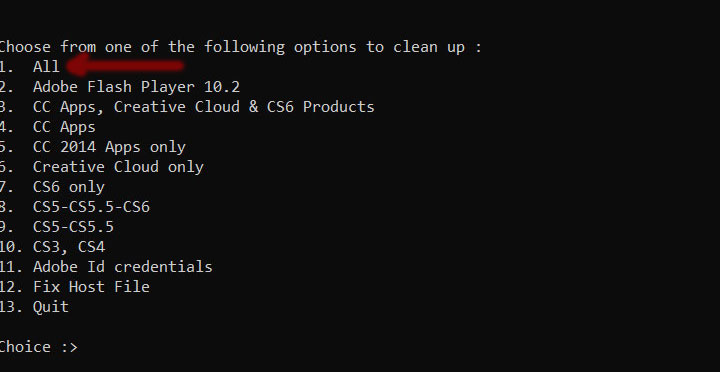
Step 09 – “Choose from one of the following options to clean up”
Step 10 – Press “1” (All) and then hit “enter” button
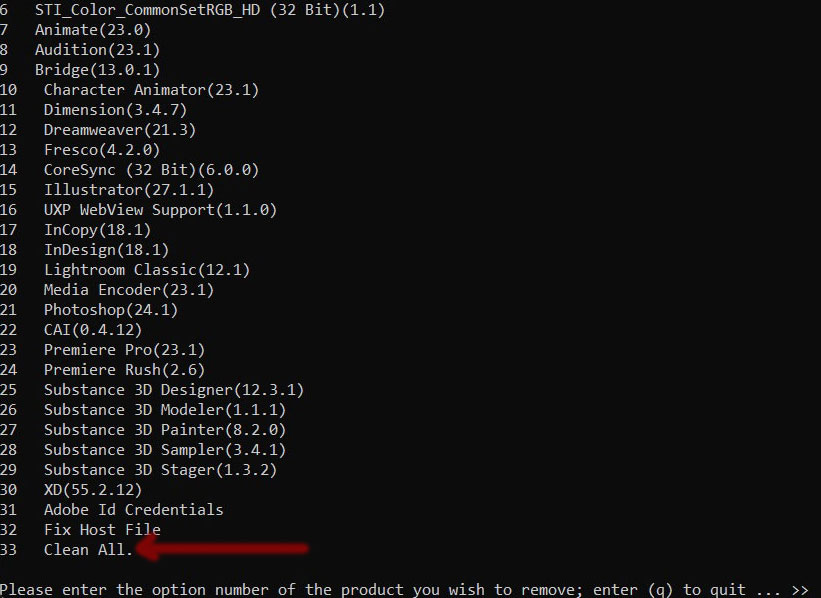
Step 11 – “Please enter the option number of the product you wish to remove”
Step 12 – Type “33” or which ever number is option for “Clean All.” and hit “enter” button
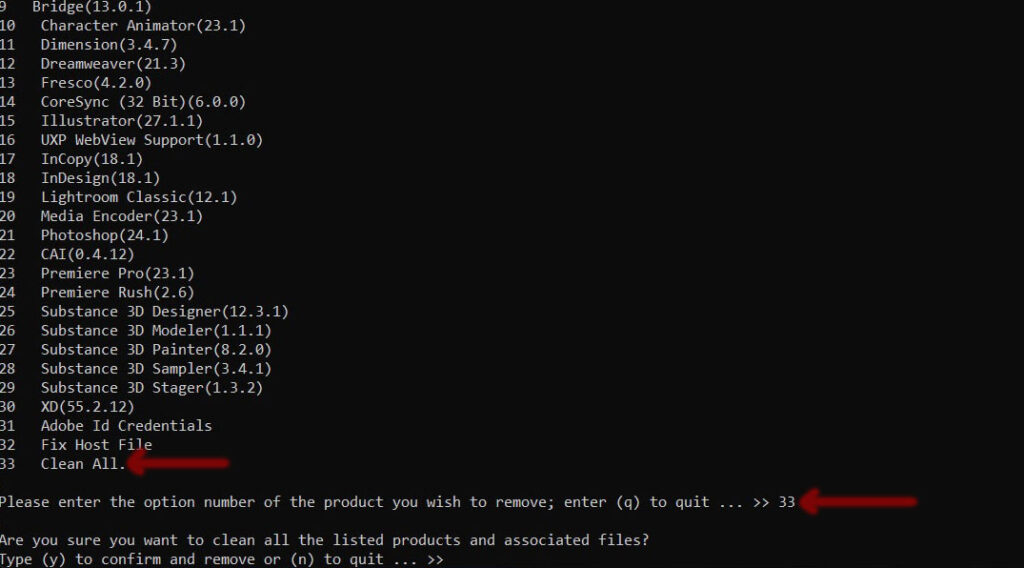
Step 13 – “Are you sure you want to clean all the listed products and associated files?”
Step 14 – Type “y”
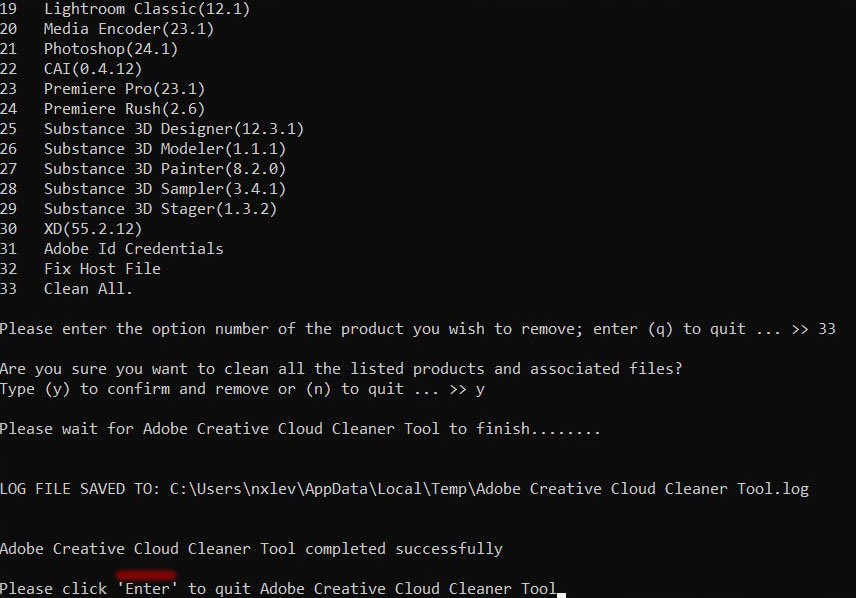
Step 15 – Be patient it takes approximately 5 mins
Step 16 – “Adobe Creative Cloud Cleaner Tool completed successfully”
Step 17 – “Please click ‘Enter’ to quit Adobe Creative Cloud Cleaner Tool”
Step 18 – Hit “enter”
Step 19 – Open a File Explorer
Step 20 – Navigate to C: Drive
Step 21 – Open “Program Files” folder. Open “Adobe” folder.
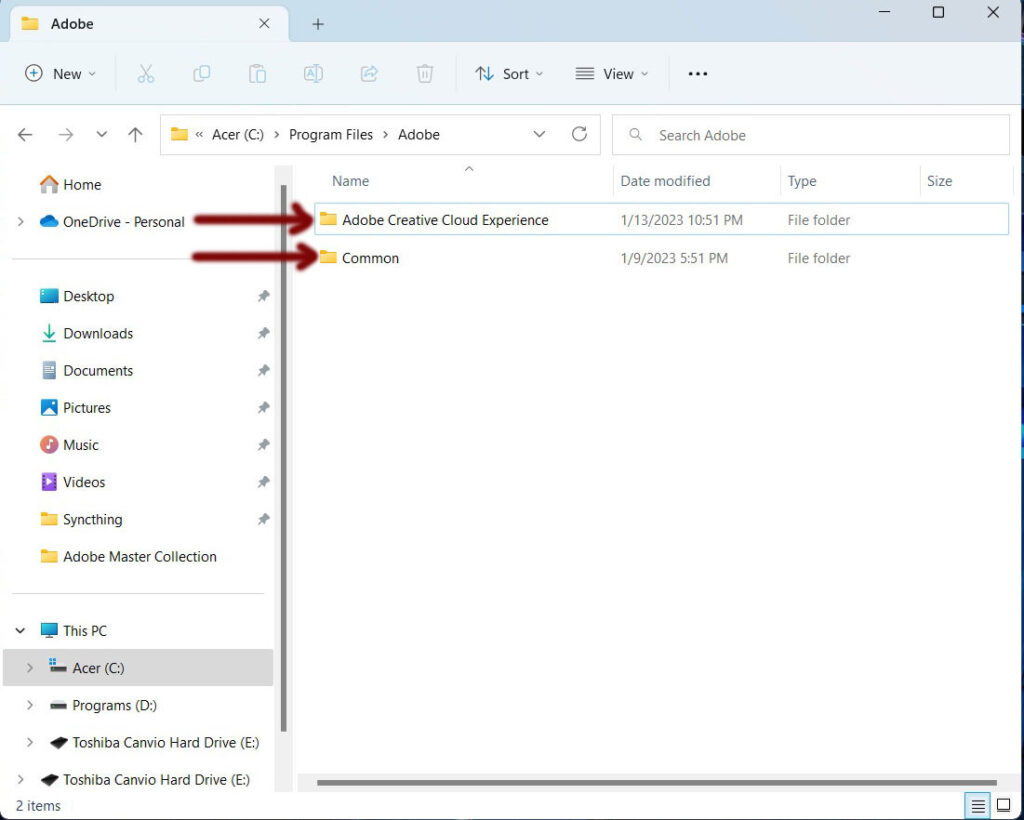
Step 22 – Only folders “Adobe Creative Cloud Experience” & “Common” should exist
Step 23 – Delete any other folder(s) besides the two mention above
Step 24 – Done
Step 25 – Restart your computer
Camera Raw Install
Adobe Camera Raw (2025 Version)
Adobe Camera Raw, which lets you import and enhance raw images, has been a must-have tool for professional photographers right since it was first released. Applications that support Adobe Camera Raw include Photoshop, Photoshop Elements, After Effects, and Bridge. Additionally, Adobe Lightroom is built upon the same powerful raw image processing technology.
Step 01 – Open folder “Adobe PhotoShop 2025”
Step 02 – Right Click on file “CameraRaw_x64_17_4.zip” and Extract.
Step 03 – Open Folder. Double click on “AdobeCameraRaw_x64_17_4.exe”


Step 04 – “License Agreement”
Step 05 – Click “I accept the agreement”
Step 06 – Click “Next”

Step 07 – <Ready to Install>
Step 08 – Click “Install”
Step 09 – Installing…


Step 10 – Click “Finished”
Step 11 – Done

Adobe – Mount
This will extract an .iso files
Step 01 – Open folder “Photoshop 2025-06-18-v9” located in Adobe PhotoShop 2025 folder
Step 02 – Find file “Adobe.Photoshop.2025.u9.Multilingual.iso”
Step 03 – Right click on file “Adobe.Photoshop.2025.u9.Multilingual.iso” and choose “Extract to Adobe.Photoshop.2025.u9.Multilingual\”


Step 04 – New folder appears. Open folder “Adobe.Photoshop.2025.u9.Multilingual”
Step 05 – Right Click on file “autoplay.exe” and choose “Run as administrator”

Adobe – Install
This will install Adobe PhotoShop (2025)
Step 01 – New window appears
Step 02 – Click “Install”

Step 03 – Next window “Installation Options”
Step 04 – Click “Continue”
Step 05 – Installing…


Step 06 – Be patient takes awhile to install approximately 10 mins.
Step 07 – Top left of the window you can see the progress of installing…
Step 08 – “Installation Complete” Click “Close”
Step 09 – Reboot Windows (This is a MUST)

Step 10 – Next…
NetLimiter Pro v5
- Download from this link
- Right Click on the zip file
- Click on “Extract to “NetLimiter Pro v5.3.13\”
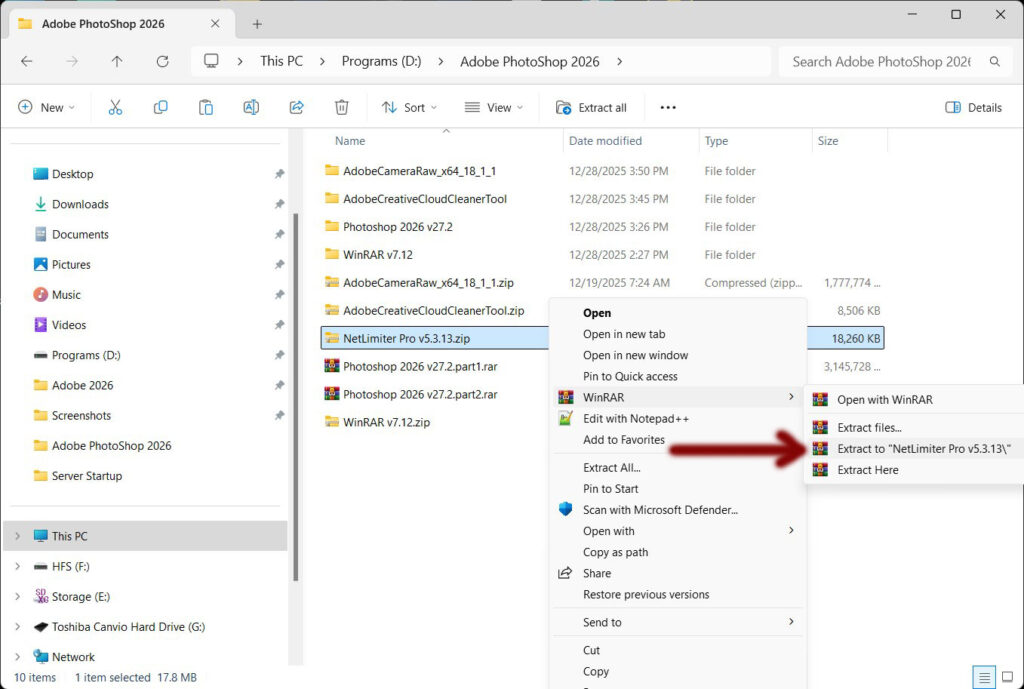
- New popup appears
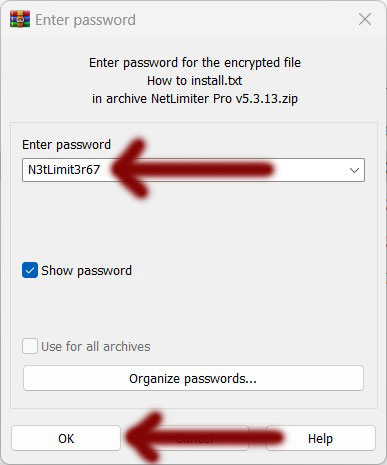
- Password = N3tLimit3r67
- Click OK
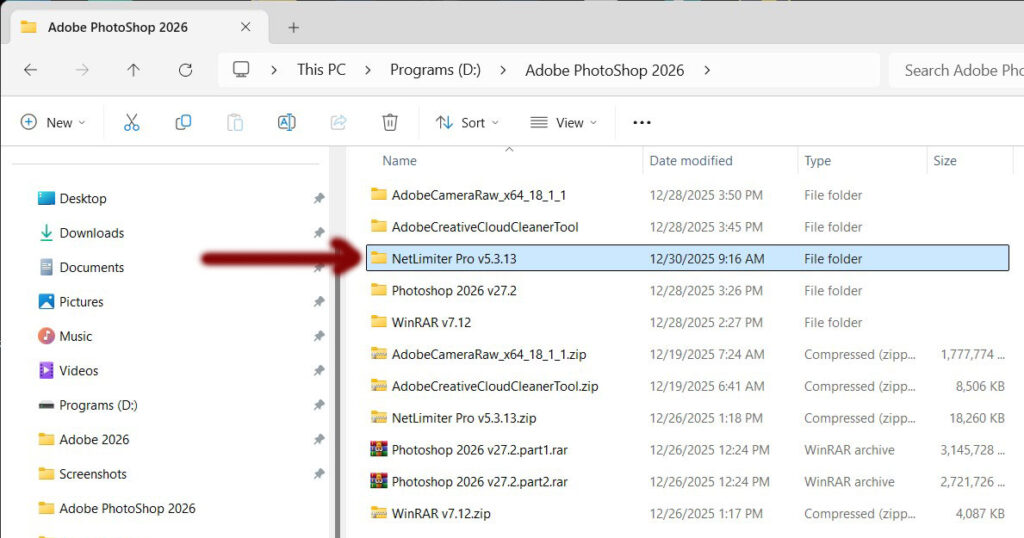
- Open new folder “NetLimiter Pro v5.3.13“
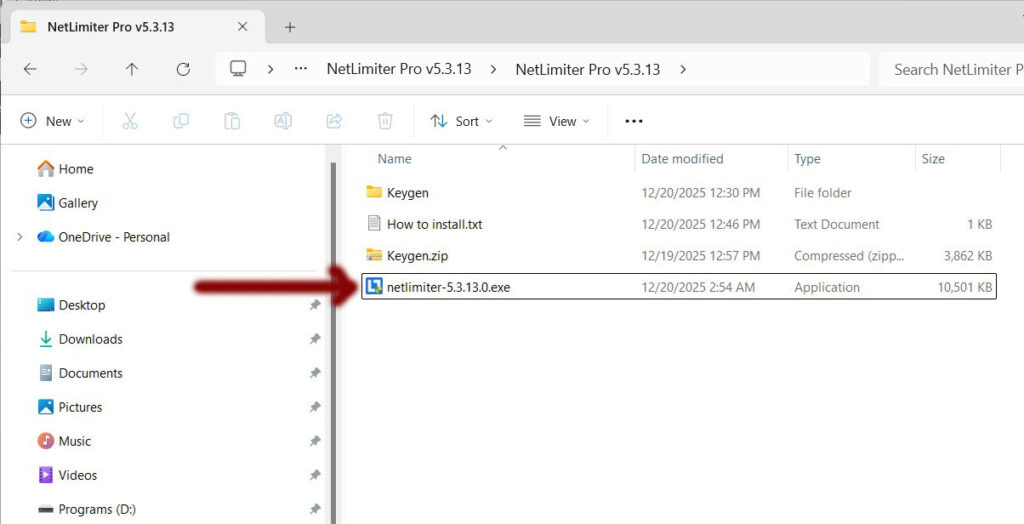
- Double Click on “netlimiter-5.3.13.0.exe“
- Click on the box “I agree to the License terms and conditions.“
- Next click “INSTALL“
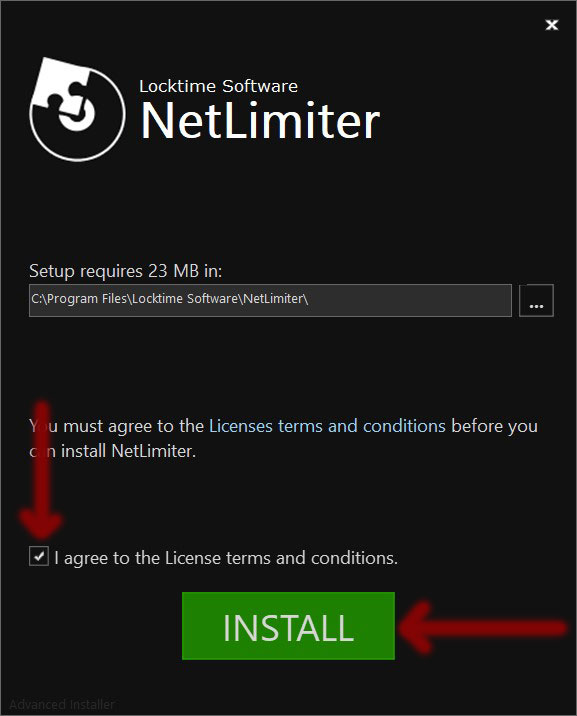
- Installing…
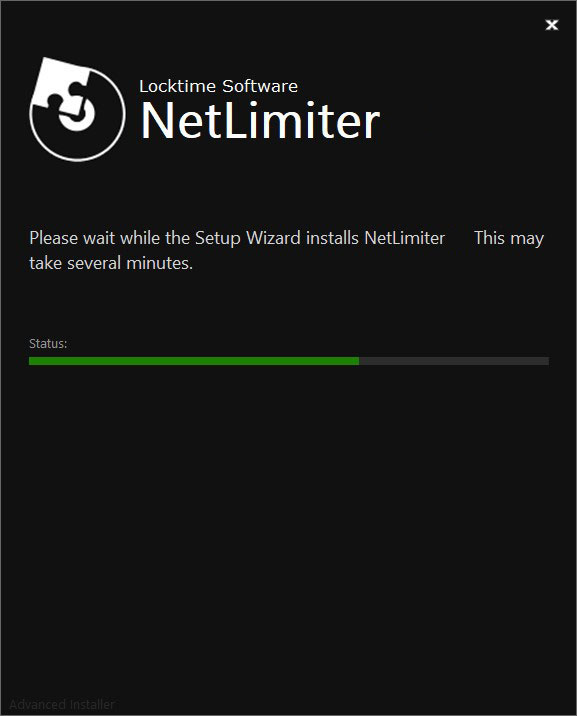
- Installation complete!
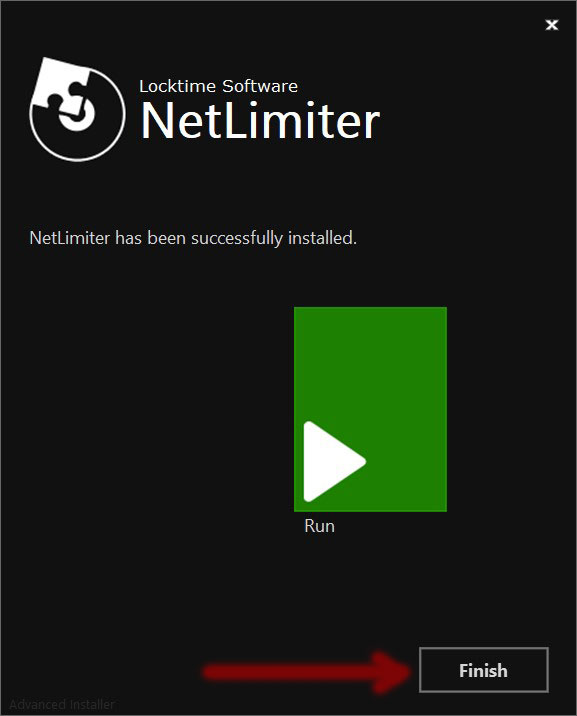
- Do Not Click “RUN“!!!
- Click “Finish“
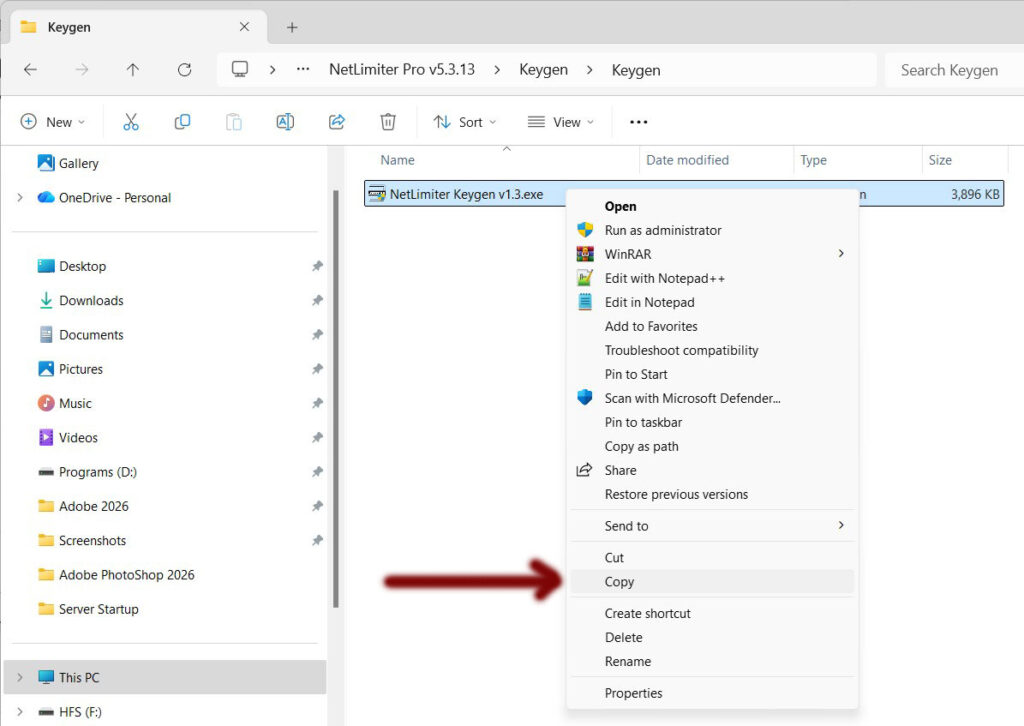
- Open the folder “Keygen”
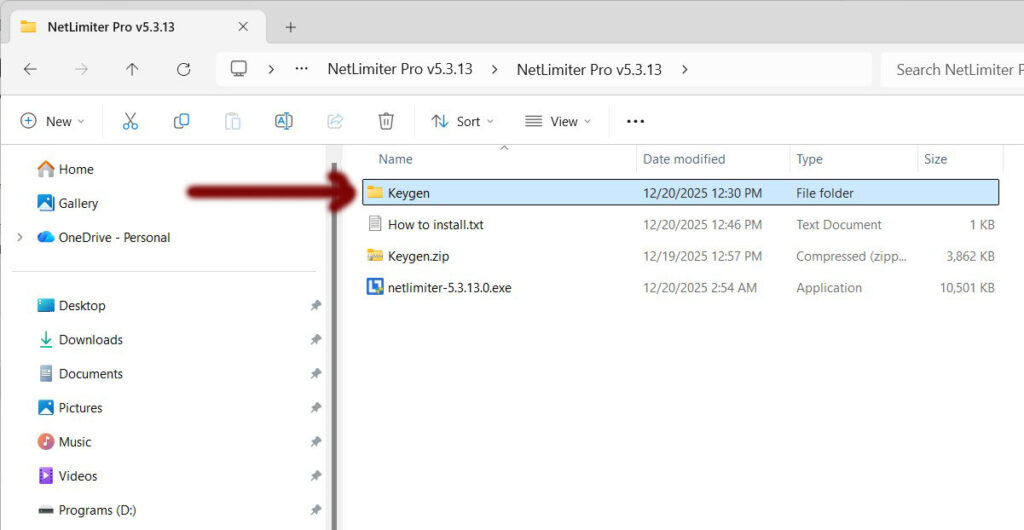
- Copy the file “NetLimiter Keygen v1.3.exe“
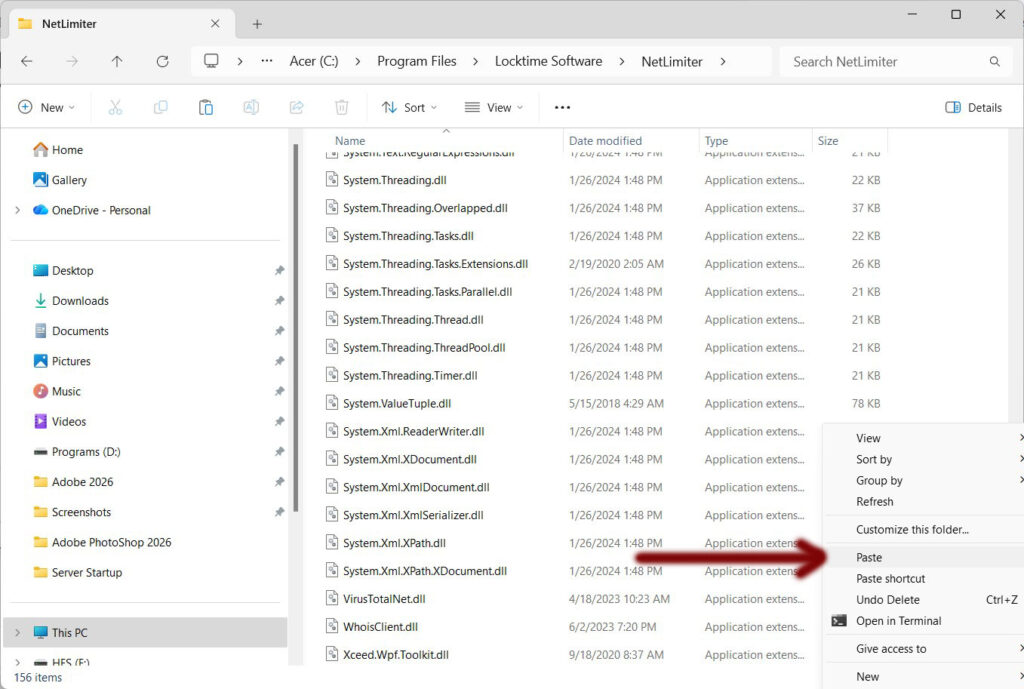
- Paste it to directory C:\Program Files\Locktime Software\NetLimiter
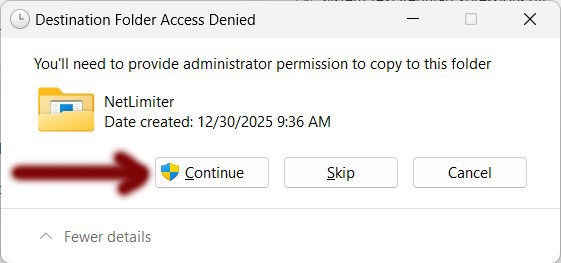
- New popup “You’ll need to provide administrator permission to copy to this folder“
- Click “Continue“
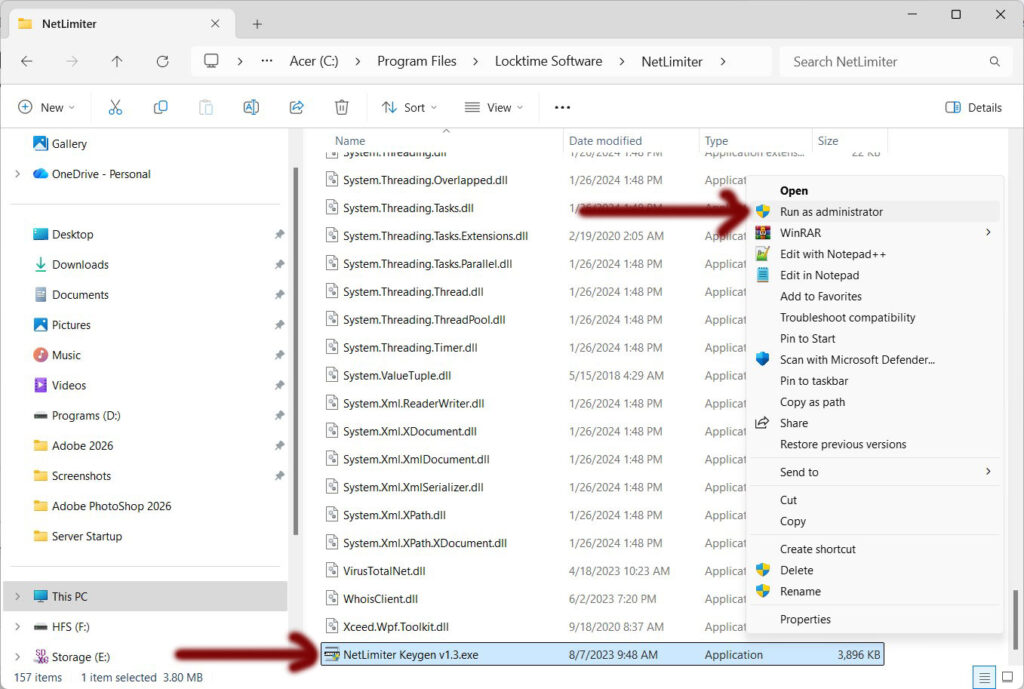
- Keygen is now copied over
- Right Click on the file “NetLimiter Keygen v1.3.exe“
- Choose to “Run as administrator“
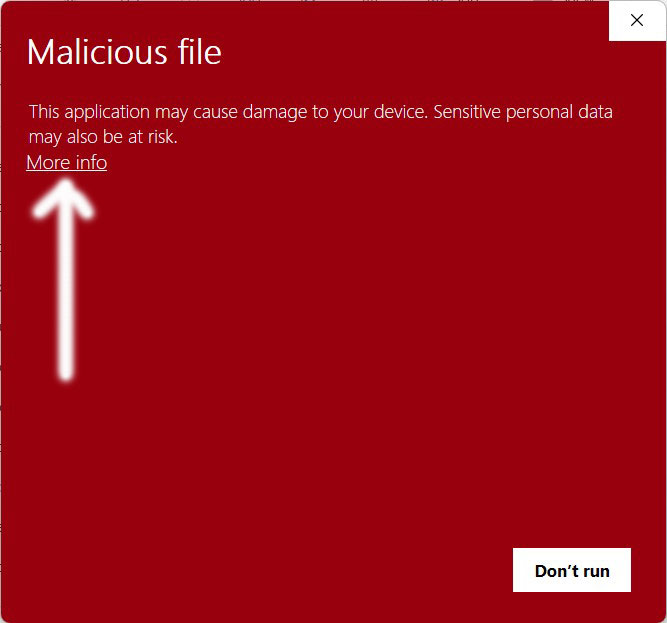
- New window appears “Malicious file“
- Click on “More info“
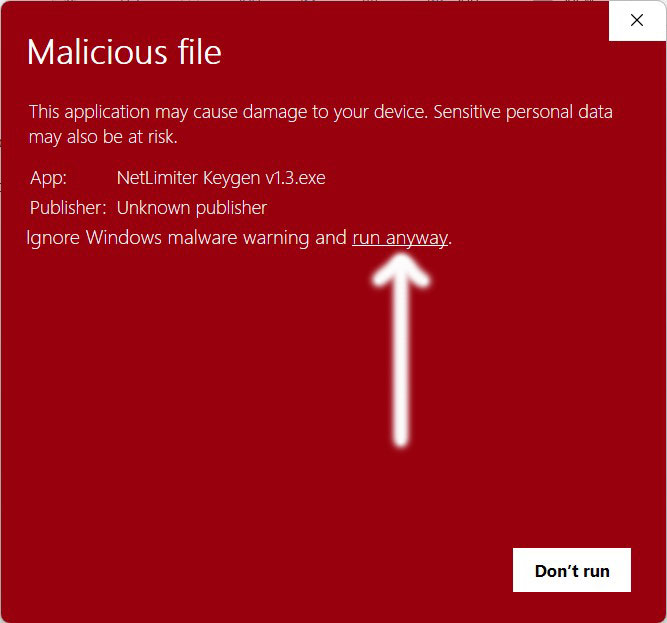
- Click on “run anyway“
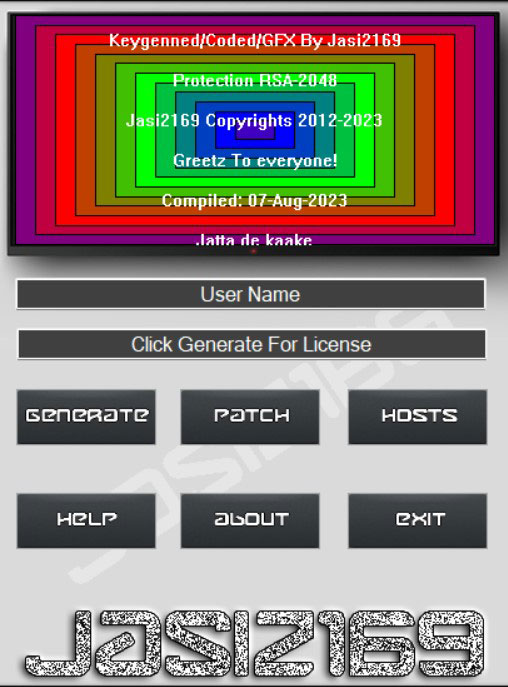
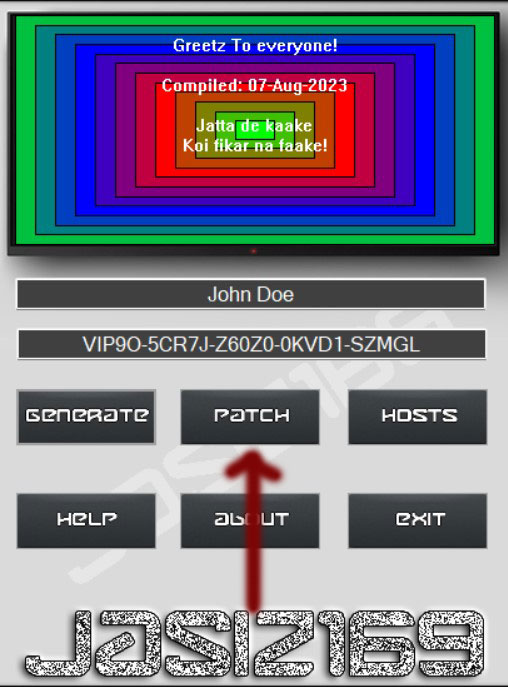
- New window appears. This is the hacking tool.
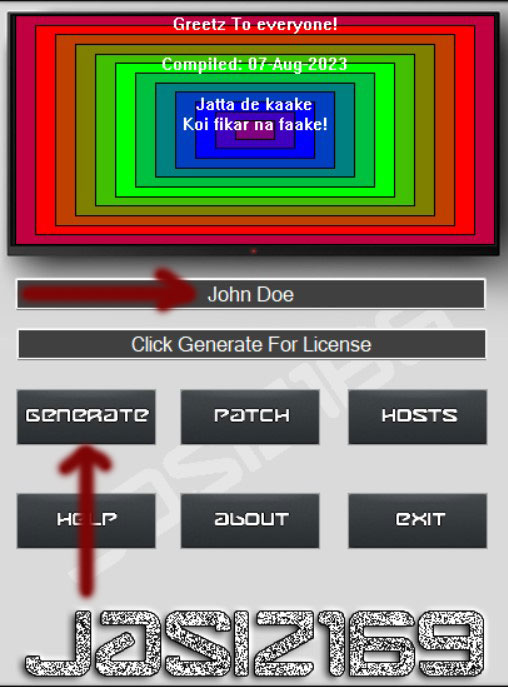
- Enter any name you want, then click “Generate“
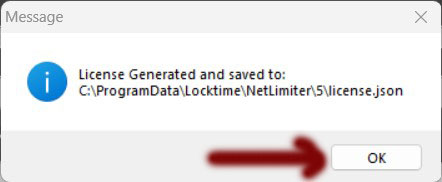
- New window appears “License Generated and saved to: C:\ProgramData\Locktime\NetLimiter\5\license.json“
- Click “OK”
- Next…Click on “Patch“
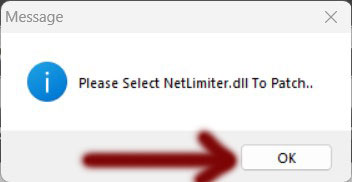
- New window appears “Please Select NetLimiter.dll To Patch.” Click “OK“
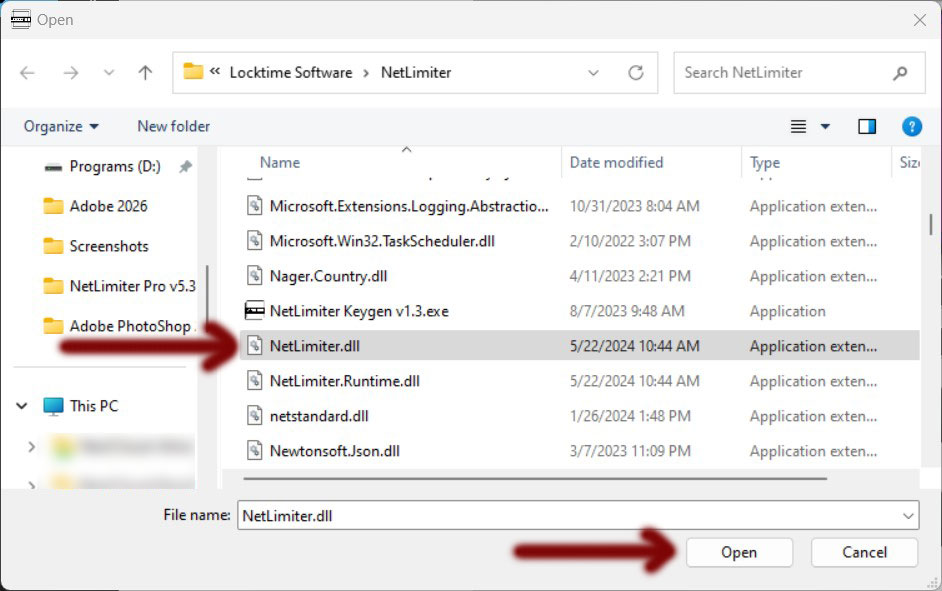
- New window appears. Find and select the file “NetLimiter.dll” and click “Open“
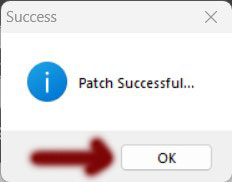
- New window appears “Patch Successful…” and click “OK“
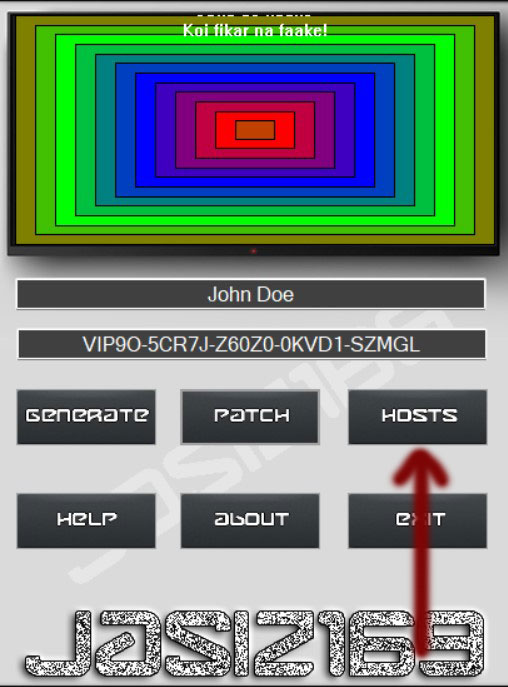
- Next..Click on “HOSTS“
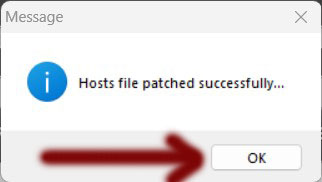
- New window appears “Hosts file patched successfully“
- Click “OK“
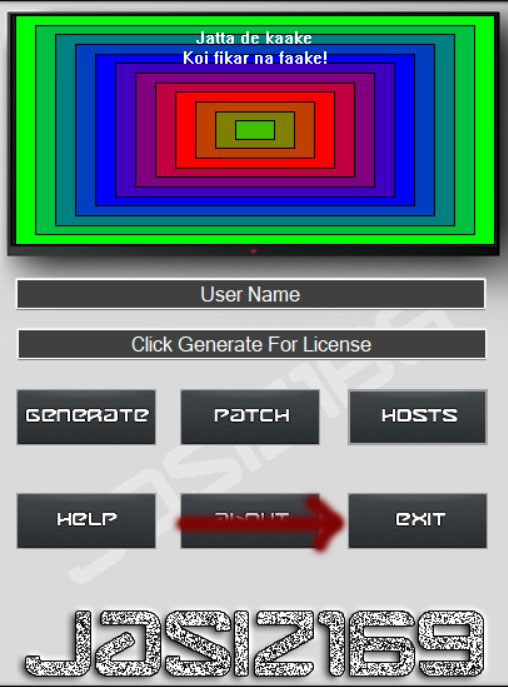
- Next click on “Exit“
Net Limiter v5
Adobe Calling Home Blocking
- Now open/launch NetLimiter 5 and in your systems tray Right Click on it and choose “Show“

- Unplug / Disconnect from Internet
- Launch every Adobe program one time
- Back to Net Limiter 5
- Click on the “Application List” tab
- Scroll down and anything with name “Adobe” highlight
- Right side choose “Deny” for both in and out for blocker
- Do this again for every Adobe app
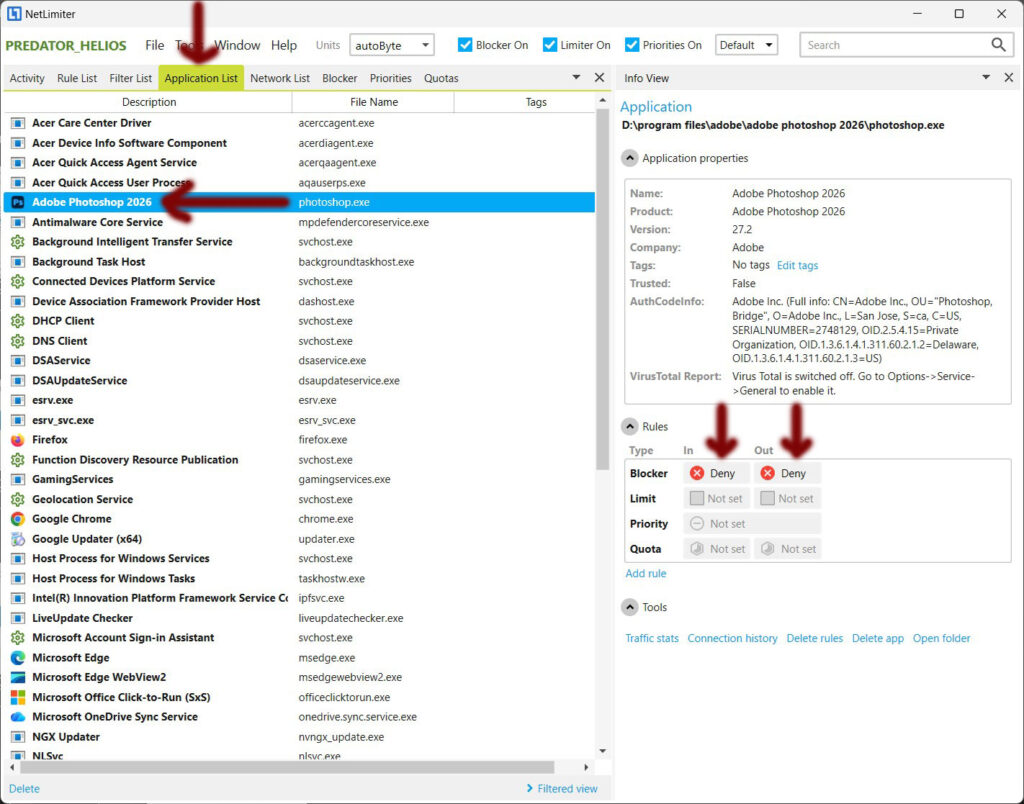
- Click on the “Application List” tab
- Scroll down to the name “NetLimiter Client” highlight
- Right side choose “Deny” for both in and out for blocker
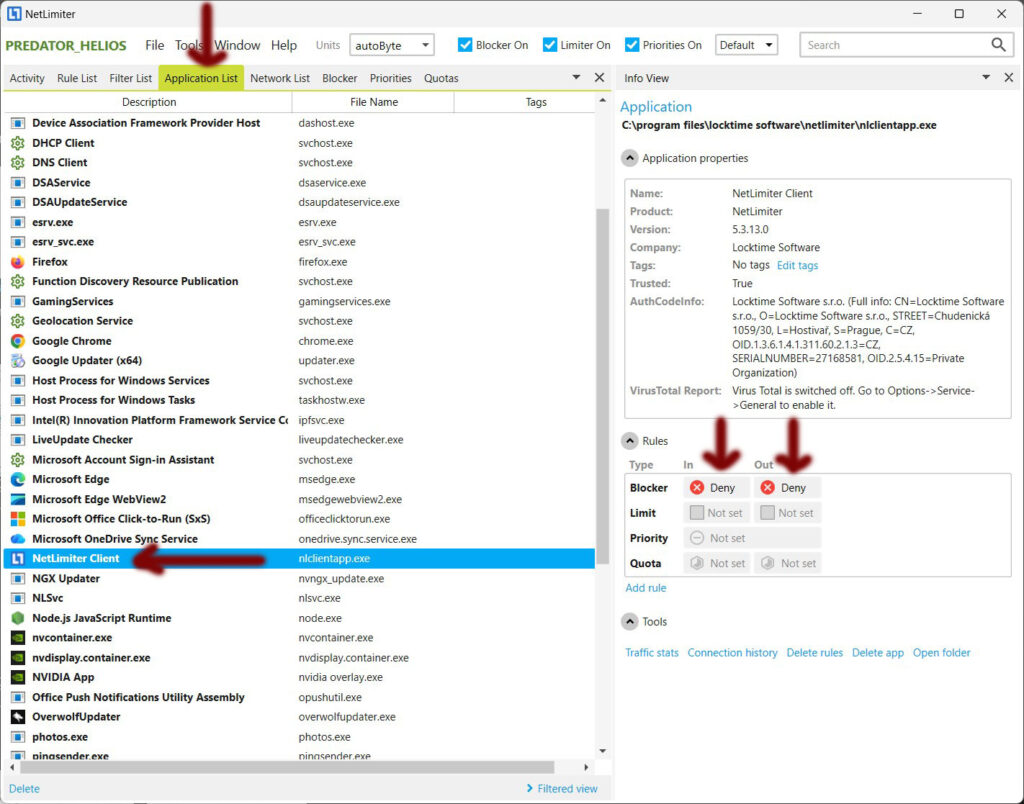
- Click on the “Application List” tab
- Scroll down to the name “NLSvc” highlight
- Right side choose “Deny” for both in and out for blocker
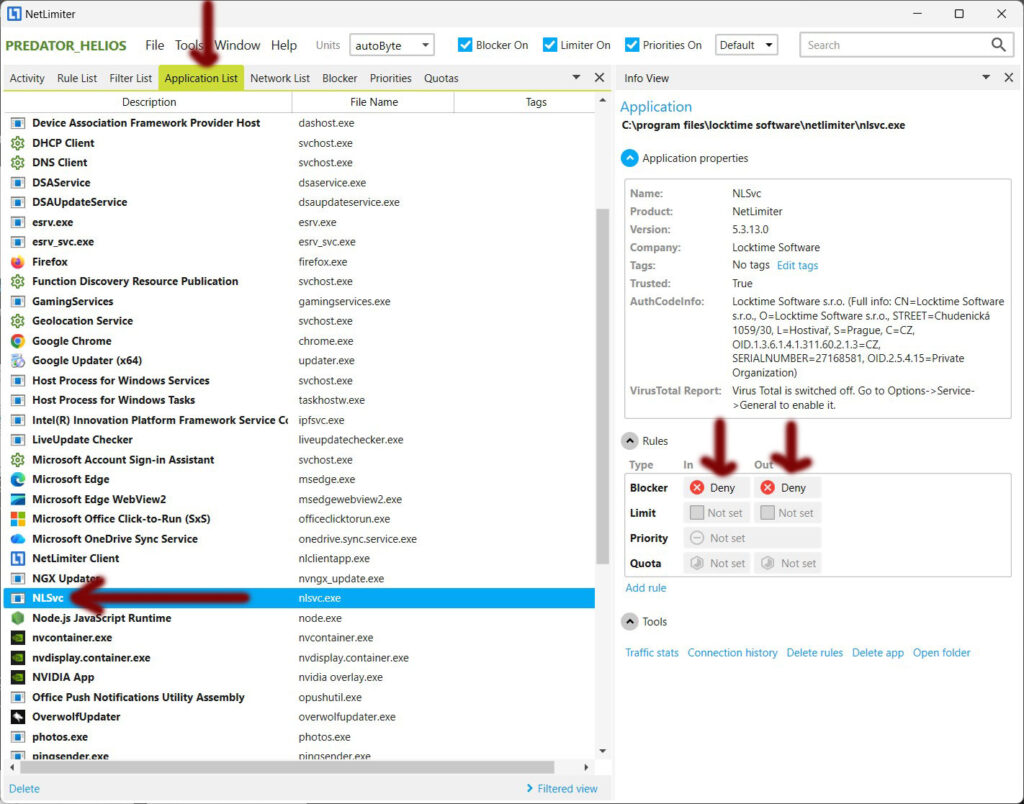
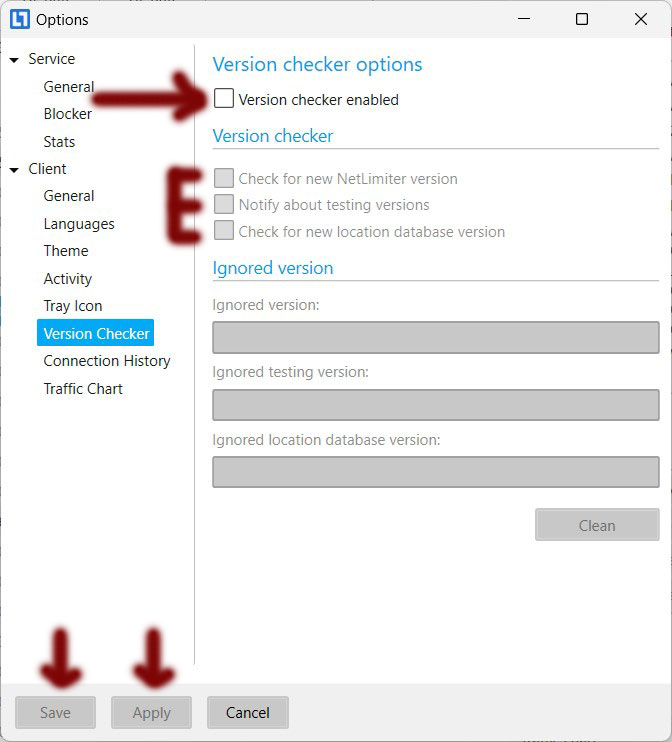
- Goto file menu, then goto “Options“
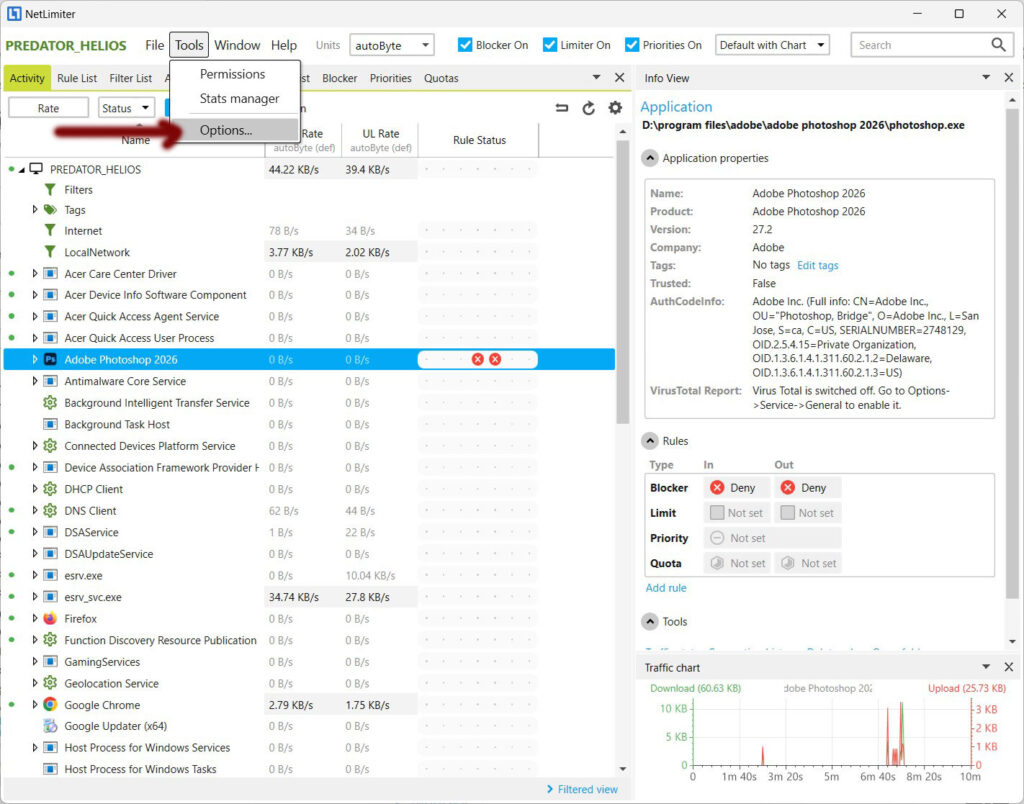
- “Options” window
- Verify each box is un-checked mark like in the picture below
- Click Apply & Save
- Next…back in the “options” section
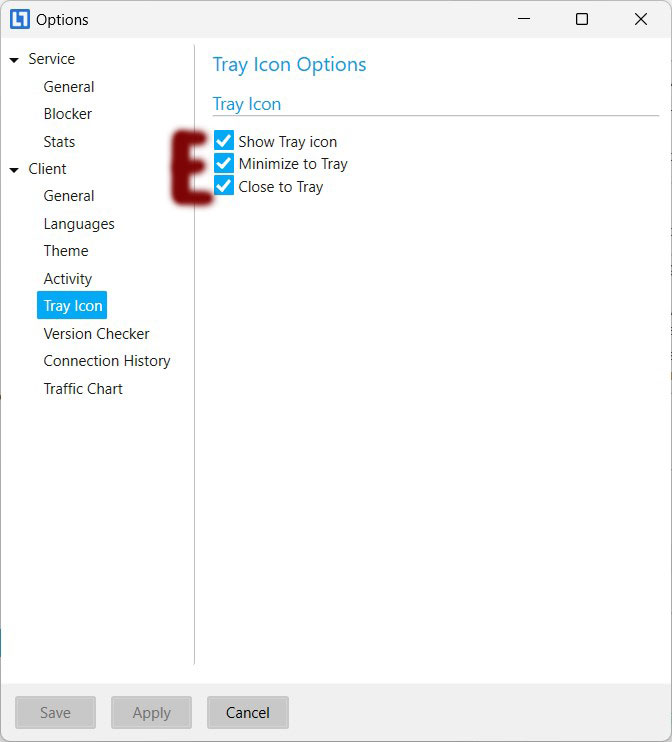
- Goto “Client” then to “Tray Icon“
- “Tray Icon Options” make sure all 3 boxes are checked mark
- Apply & Save
- Re-connect Internet