
Adobe Clean
Adobe Cleaner Tool (2025 Version)
Follow these steps only if you have an older version of Adobe products
Skip this step if no Adobe products were ever installed
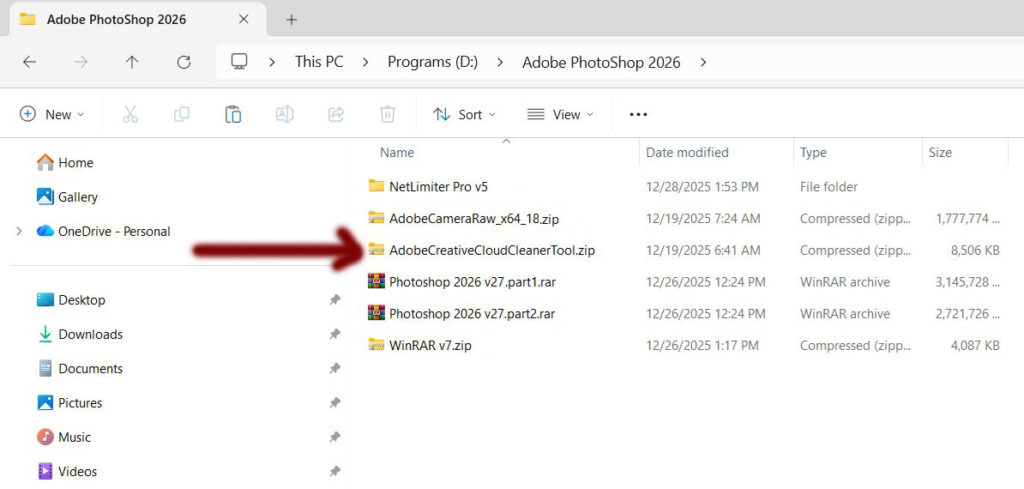
Step 01 – Open folder “Adobe PhotoShop 2026”
Step 01 – Right Click “AdobeCreativeCloudCleanerTool.zip” and Choose “Extract All…”
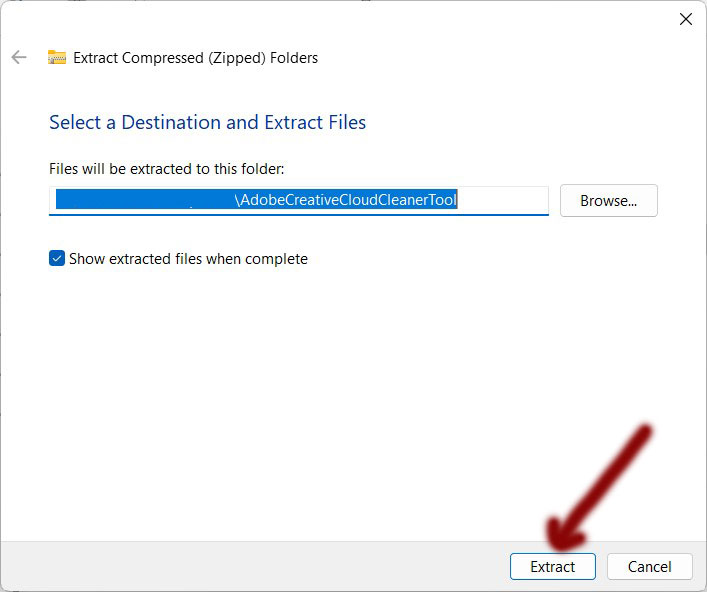
Step 03 – New window appears. Click “Extract”
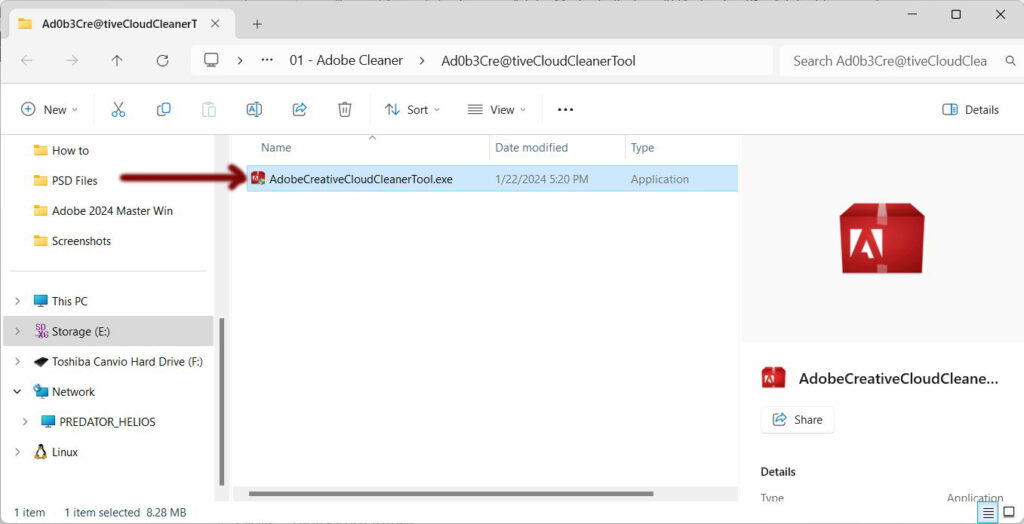
Step 04 – Open folder “Ad0b3Cre@tiveCloudCleanerTool”
Step 05 – Right click on “AdobeCreativeCloudCleanerTool.exe“. New menu appears. Choose “Run as administrator”
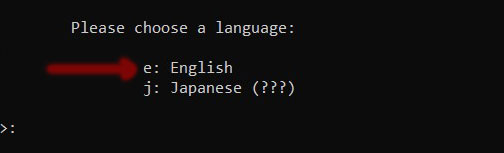
Step 06 – New window appears
Step 07 – Click on “e” and hit “enter” to begin in English
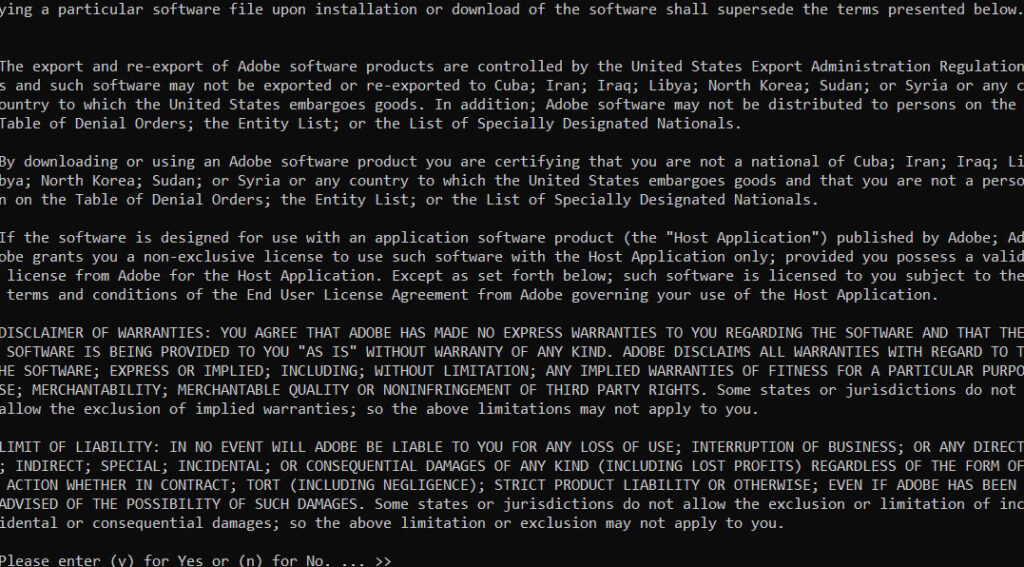
Step 08 – Next. Press “y” then hit “enter”
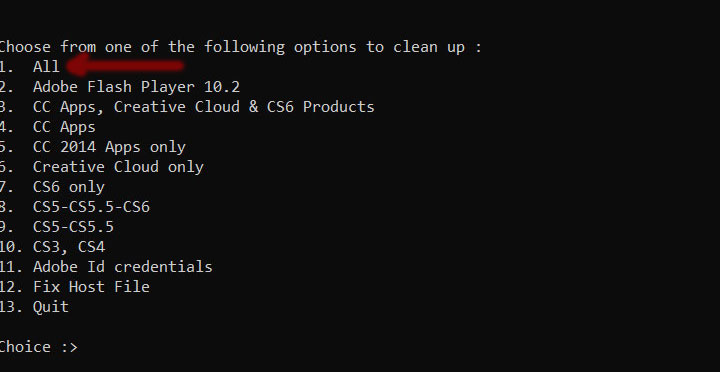
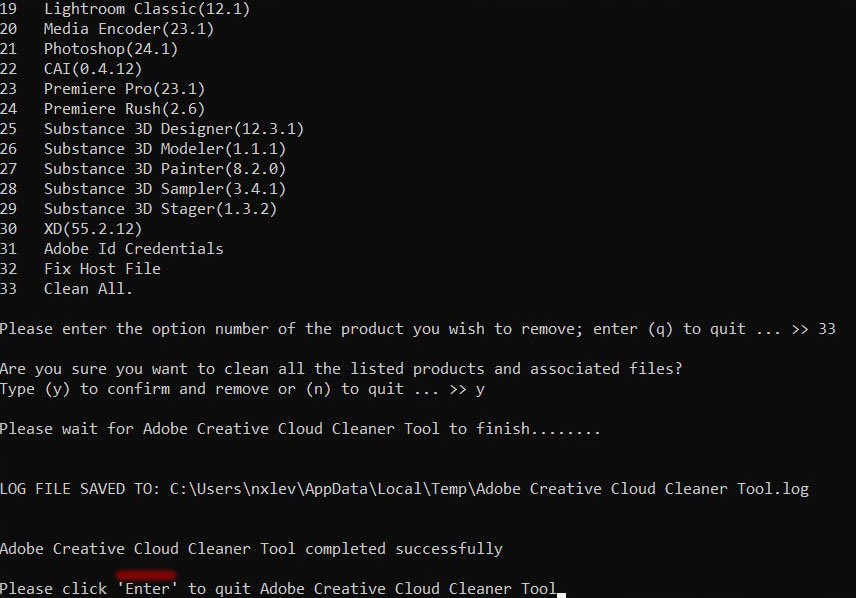
Step 09 – “Choose from one of the following options to clean up”
Step 10 – Press “1” (All) and then hit “enter” button
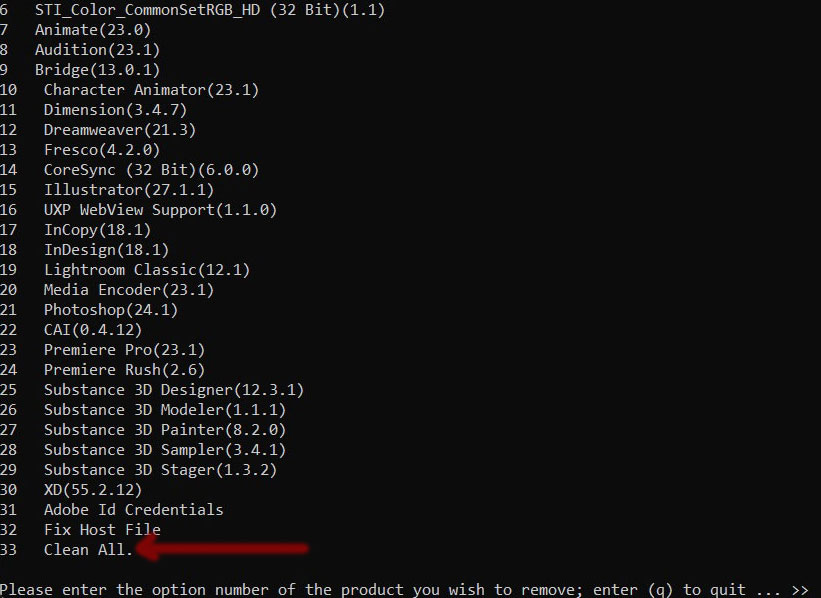
Step 11 – “Please enter the option number of the product you wish to remove”
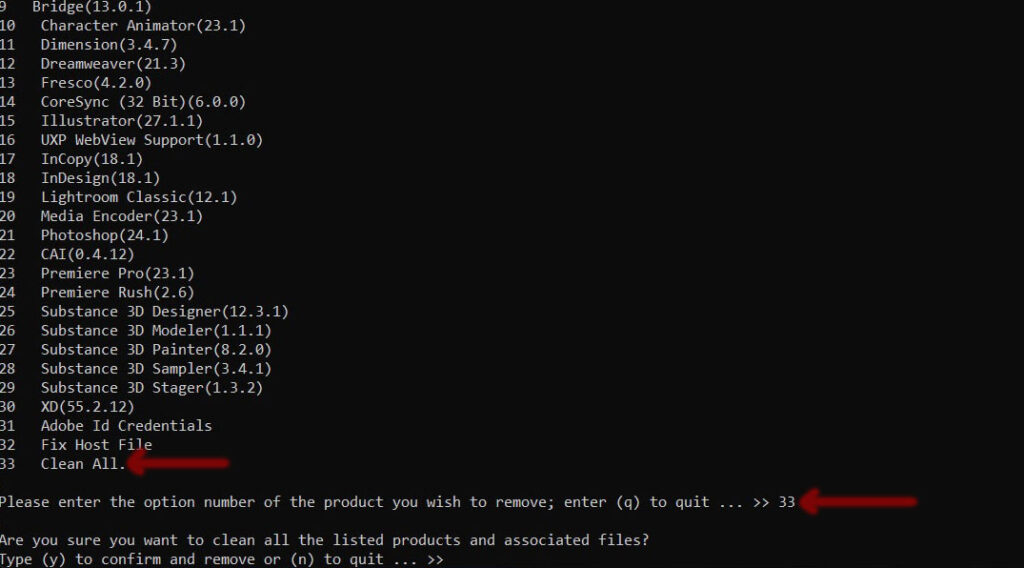
Step 12 – Type “33” or which ever number is option for “Clean All.” and hit “enter” button
Step 13 – “Are you sure you want to clean all the listed products and associated files?”
Step 14 – Type “y”
Step 15 – Be patient it takes approximately 5 mins
Step 16 – “Adobe Creative Cloud Cleaner Tool completed successfully”
Step 17 – “Please click ‘Enter’ to quit Adobe Creative Cloud Cleaner Tool”
Step 18 – Hit “enter”
Step 19 – Open a File Explorer
Step 20 – Navigate to C: Drive
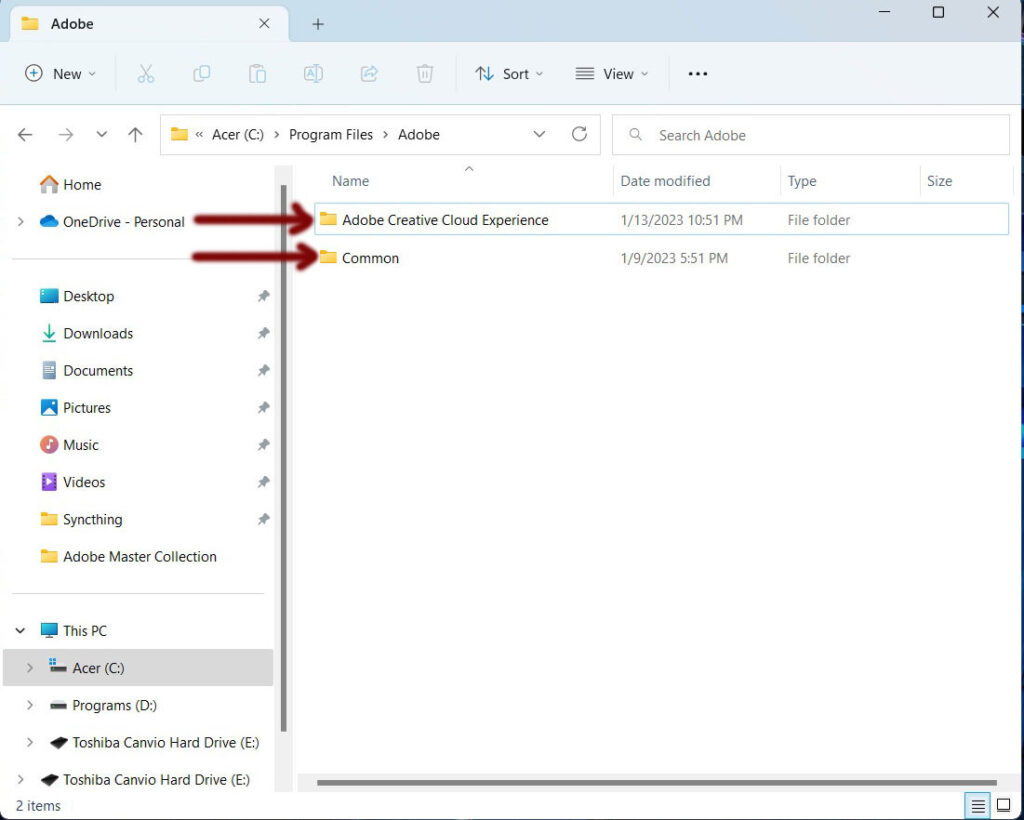
Step 21 – Open “Program Files” folder. Open “Adobe” folder.
Step 22 – Only folders “Adobe Creative Cloud Experience” & “Common” should exist
Step 23 – Delete any other folder(s) besides the two mention above
Step 24 – Done
Step 25 – Restart your computer